TL;DR
- Learn how to scrape Google Lens using Python by passing an image URL and retrieving structured JSON results.
- Use Scrapingdog's Google Lens API to extract visual matches, exact matches, titles, source domains, thumbnails, and AI Overview data without handling JavaScript or CAPTCHAs.
- Fetch exact matches and visual matches with simple API parameters, then export the results to CSV using Requests and Pandas.
- Useful for image search, product discovery, visual SEO, competitor research, and machine learning workflows.
Google Lens lets you search the web using an image instead of text. Point it at a product, a plant, a landmark, or a screenshot, and it returns visual matches, source links, and related content in seconds.
That’s powerful on its own. But what if you need to do this at scale? Manually running images through Google Lens one by one isn’t viable when you’re building a price comparison tool, training an image classifier, or monitoring how your product images appear across the web. You need to scrape Google Lens programmatically, and that’s exactly what this guide covers.
In this tutorial, you’ll learn how to scrape Google Lens using Python and Scrapingdog’s Google Lens API. The API handles JavaScript rendering, CAPTCHAs, and IP rotation on the backend so you get clean JSON results without fighting Google’s bot detection.
By the end, you’ll be able to pass any image URL to the API and extract titles, source domains, links, and thumbnails from Google Lens results in a few lines of Python.
What Can You Do with Google Lens Scraped Data?
Scraped Data from Google Lens can be used in various places:
For the identification of products from images for price comparisons, or inventory management.
In training machine learning models for image classification, facial and object recognition.
To search for related products similar to the object in the image on the internet.
To create interactive applications that can identify objects in the surroundings and provide information about them.
Why Use Scrapingdog to Scrape Google Lens?
No CAPTCHA Headaches- Google aggressively blocks automated requests. Scrapingdog handles CAPTCHA solving at the backend so your requests go through without interruption.
Rotating Proxies Built-In- Every request is routed through a large pool of residential and datacenter proxies. No IP bans, no manual proxy management on your end.
Clean JSON Output- Results come back as structured JSON — no HTML parsing, no XPath selectors, no fragile regex. Just the data you can use immediately.
Real-Time Results- The API returns live Google Lens data, not cached snapshots. What you get reflects what Google Lens returns at the time of the request.
Simple Integration- One GET request with two parameters, your API key and the image URL. Works with any language that can make an HTTP call.
Prerequisites
You’ll need the following before writing any code:
Python 3.x is installed on your machine.
You can learn web scraping with Python as well, before moving ahead with this blog.
A Scrapingdog account to get 100 free API credits, no credit card required.
Basic familiarity with Python and the
requestslibrary
Project Setup
Create a project folder and navigate into it:
1mkdir lens && cd lensNow install the only dependency you’ll need:
1pip install requestsrequests handles the HTTP call to Scrapingdog's API endpoint. That's the only external library this tutorial requires.
Getting Your API Key
Once you’ve signed up, your API key is available on the dashboard. Copy it, you’ll need it in the next step.
How to Scrape Google Lens with Python
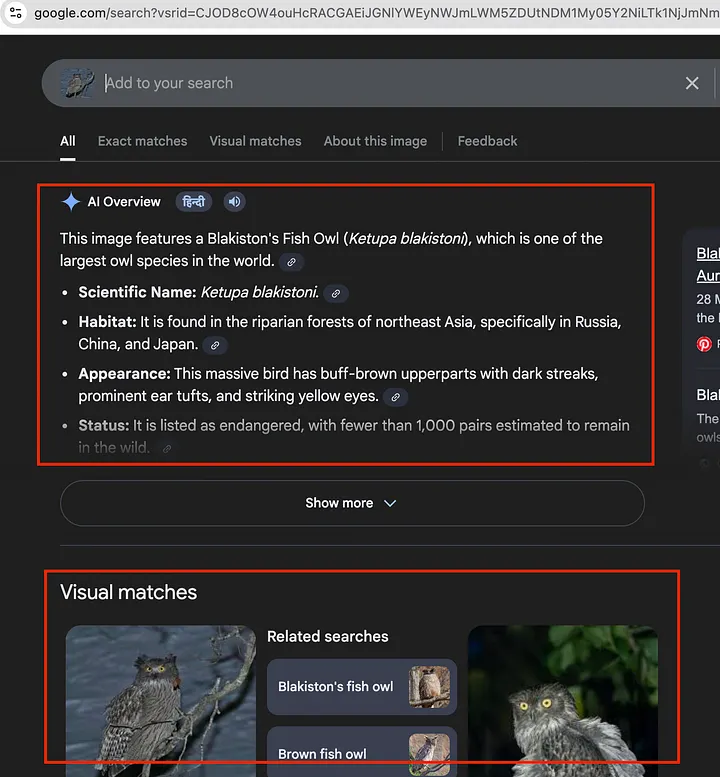
For this example, we’ll use an image of a Blakiston’s Fish Owl. One of the rarest owl species on the planet, native to the Russian Far East. It’s a good test case because it’s obscure enough that Google Lens has to work hard to identify it, which makes the results more interesting to inspect.
We’re trying to extract the data shown in the image below. This is the default search.
Start by importing the requests library:
1import requestsNow build the API call. Pass your API key and the image URL as query parameters:
1payload = {2 'api_key': 'YOUR_API_KEY',3 'url': 'https://lens.google.com/uploadbyurl?url=https://www.oiseaux-birds.com/strigiformes/strigides/ketoupa-blakiston/ketoupa-blakiston-aa2.jpg'4}5 6resp = requests.get('https://api.scrapingdog.com/google_lens', params=payload)7data = resp.json()8 9print(data["lens_results"])Replace YOUR_API_KEY with the key from your Scrapingdog dashboard. If you skip this, the API will return a 401 error. You can even copy this code directly from the dashboard.
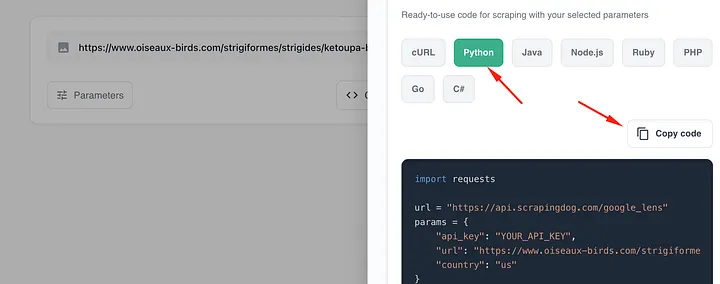
Run the script, and you’ll get a response like this:
1{2 "lens_results": [3 {4 "position": 1,5 "title": "Plumage Collection of Photo Prints and Gifts",6 "source": "natureplprints.com",7 "source_favicon": "https://encrypted-tbn0.gstatic.com/favicon-tbn?q=tbn:ANd9Gc...",8 "link": "https://www.natureplprints.com/galleries/plumage",9 "thumbnail": "https://encrypted-tbn3.gstatic.com/images?q=tbn:ANd9Gc..."10 },11 {12 "position": 2,13 "title": "Toud-pesketaer rous - Wikipedia",14 "source": "wikipedia.org",15 "source_favicon": "https://encrypted-tbn3.gstatic.com/favicon-tbn?q=tbn:ANd9Gc...",16 "link": "https://br.wikipedia.org/wiki/Toud-pesketaer_rous",17 "thumbnail": "https://encrypted-tbn0.gstatic.com/images?q=tbn:ANd9Gc..."18 }19 ]20}Each result in lens_results is a visual match Google found for the image. Here's what each field gives you:
position — Rank of the result in Google Lens output
title — Page title of the matched source
source — Domain name of the matching website
source_favicon — Favicon URL of the source domain
link — Direct URL to the matched page
thumbnail — Google-cached thumbnail of the matched image
You will also get the AI Overview section within the JSON.
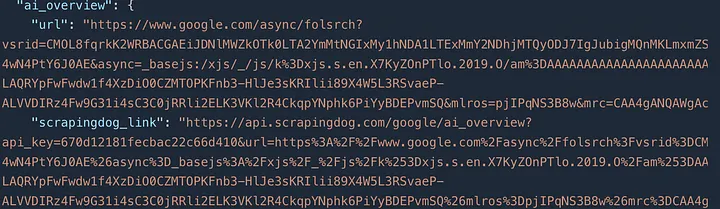
Scraping Exact Matches from Google Lens
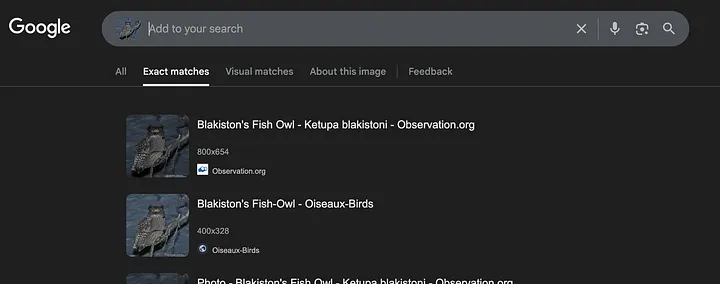
Now, if you want to scrape the Exact Matches with the API, then you have to use the exact_matches parameter of the API. It is a boolean parameter, and you just have to set it to true.
1import requests2 3url = "https://api.scrapingdog.com/google_lens"4params = {5 "api_key": "YOUR_API_KEY",6 "url": "https://www.oiseaux-birds.com/strigiformes/strigides/ketoupa-blakiston/ketoupa-blakiston-aa2.jpg",7 "country": "us",8 "exact_matches": "true"9}10 11response = requests.get(url, params=params)12print(response.json())Once you run this, you will get the JSON data based on an exact match from Google Lens.
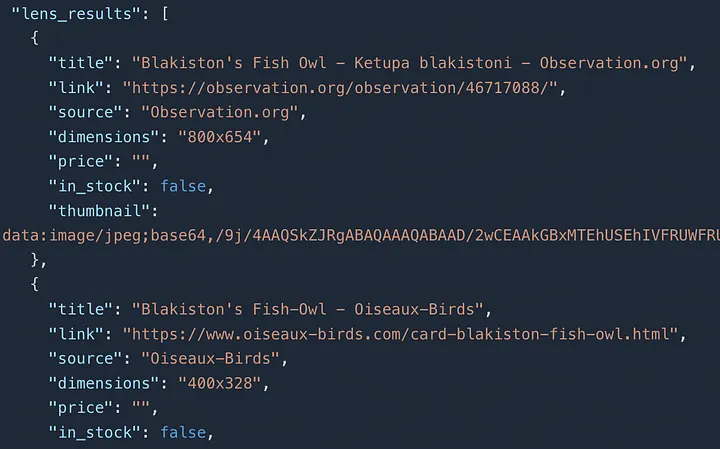
Scraping Visual Matches from Google Lens
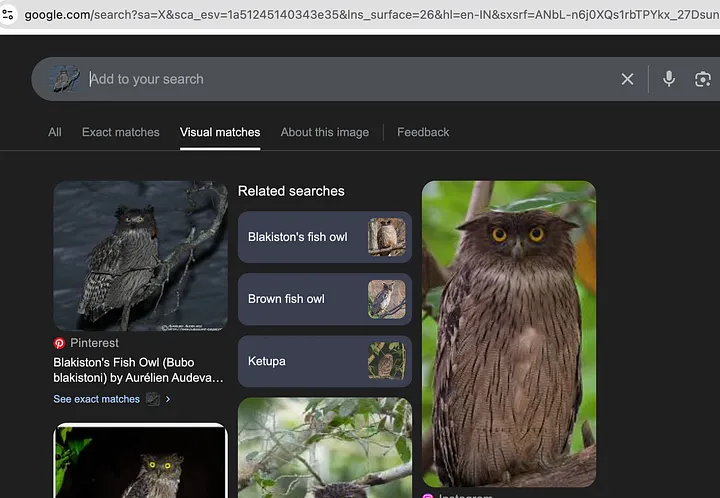
For scraping visual match from Google Lens, you have to use the visual_matches parameter.
1import requests2 3url = "https://api.scrapingdog.com/google_lens"4params = {5 "api_key": "YOUR_API_KEY",6 "url": "https://www.oiseaux-birds.com/strigiformes/strigides/ketoupa-blakiston/ketoupa-blakiston-aa2.jpg",7 "country": "us",8 "visual_matches": "true"9}10 11response = requests.get(url, params=params)12print(response.json())Scrapingdog handles JavaScript rendering, CAPTCHA solving, and IP rotation on the backend. So this call works reliably at scale without you managing any proxy infrastructure.
Saving Google Lens Results to a CSV File
Printing results to the terminal is fine for testing, but in practice, you’ll want to store them. Here’s how to save the full lens_results output to a CSV file using pandas.
First, install pandas if you haven’t already:
1pip install pandasNow update your script to import pandas and save the results:
1import requests2import pandas as pd3 4payload = {5 'api_key': 'YOUR_API_KEY',6 'url': 'https://lens.google.com/uploadbyurl?url=https://www.oiseaux-birds.com/strigiformes/strigides/ketoupa-blakiston/ketoupa-blakiston-aa2.jpg'7}8 9resp = requests.get('https://api.scrapingdog.com/google_lens', params=payload)10data = resp.json()11 12results = data["lens_results"]13 14df = pd.DataFrame(results)15df.to_csv("lens_results.csv", index=False)16 17print(f"Saved {len(results)} results to lens_results.csv")Running this script will produce a lens_results.csv file in your project folder.
Key Takeaways
The blog explains what Google Lens is and how it enables visual-based search using images instead of text queries.
It highlights why scraping Google Lens is challenging due to heavy JavaScript rendering and strict bot-detection mechanisms.
The article shows how using a scraping API simplifies Google Lens data extraction by handling rendering, headers, and blocking issues.
It demonstrates how image-based search results can be programmatically collected for analysis, research, and automation workflows.
The post emphasizes real-world use cases such as visual product research, image-based SEO insights, and competitive analysis.