TL;DR
- Python tutorial: use Scrapingdog’s Google Images API to fetch results and save to CSV.
- Setup with
requests; passquery/country; receive JSON (title,image,source,original,link). - Sample code iterates results and writes
images_data.csv. - Use cases: ML datasets and market research; API is fast and scalable; includes free credits on signup.
Google Images is one of the largest visual databases on the internet, and for developers, data scientists, and researchers, it’s a goldmine. Whether you’re building a machine learning dataset, tracking visual trends in your industry, or doing competitive research, being able to programmatically pull image data from Google Images at scale is incredibly useful.
The problem? Google actively works against automated scraping. Dynamic JavaScript rendering, lazy-loaded thumbnails, Base64-encoded images, CAPTCHA challenges, and aggressive IP blocking make it genuinely difficult to extract image data reliably. A simple Requests script will work for maybe 10–20 queries before Google shuts it down.
In this guide, we’ll cover everything you need to know about scraping Google Images with Python, starting with a manual approach using Playwright so you understand exactly what’s happening under the hood, and then moving to a scalable, production-ready method using Scrapingdog’s Google Images API. By the end, you’ll have working code that can extract image URLs, titles, source pages, and thumbnails for any search query you throw at it.
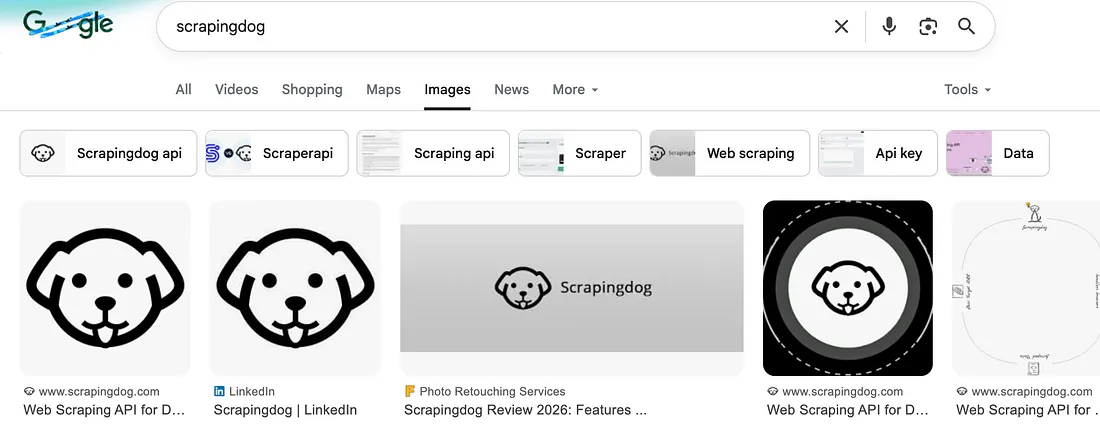
Here’s what we’ll cover:
How Google Images works and why it’s hard to scrape
A manual Python + Playwright scraper (with real working code)
Why manual scrapers break at scale
How to use Scrapingdog’s API to get structured image data reliably
Pagination, CSV export, error handling, and common pitfalls
Whether you’re a beginner looking to understand the basics or an experienced developer who needs a production-grade solution, this guide has you covered.
Why scrape Google Images?
Before jumping into the code, it’s worth understanding what you can actually do with scraped Google Images data because the use cases go well beyond just downloading pictures.
Building Machine Learning Datasets — Computer vision models need thousands of labeled images to train on. Google Images lets you collect diverse, categorized datasets in hours instead of weeks.
Visual Trend Monitoring — Brands and marketers scrape Google Images to track how visual styles are evolving in their industry over time, something impossible to do manually at scale.
Competitive Research — E-commerce businesses monitor how their products and competitors appear in Google’s visual search results, since image rankings directly impact shopping page click-through rates.
Content Discovery — Media companies and content platforms use image scraping pipelines to discover and catalogue visual content at scale, feeding editorial workflows automatically.
Academic Research — Researchers in fields like sociology, medicine, and urban planning use Google Images as a proxy dataset for real-world visual information.
The common thread across all these use cases is scale. Manually downloading images isn’t viable beyond a few dozen results, which is exactly why programmatic scraping becomes necessary.
How to Scrape Google Images with Python (Manual Method)
For this manual approach, we will be using Playwright, a browser automation library that can handle JavaScript-rendered pages, lazy-loaded content, and dynamic DOM changes that a simple Requests script simply can’t deal with. You should read web scraping with Playwright if you want to scrape it with Node.js instead of Python.
Installation
First, install Playwright and its Python bindings:
1pip install playwright2playwright install chromiumHow Google Images Loads Data
Before writing a single line of scraping code, it’s important to understand what you’re dealing with. Google Images doesn’t load all results upfront, it lazy-loads thumbnails as you scroll, encodes them as Base64 strings initially, and only swaps in the real image URL when a user clicks or hovers on a result. This means you need a real browser, not just an HTTP request, to get usable data.
1import asyncio2from playwright.async_api import async_playwright3import json4 5async def scrape_google_images(query: str, num_scrolls: int = 3):6 results = []7 8 async with async_playwright() as p:9 browser = await p.chromium.launch(headless=True)10 page = await browser.new_page()11 12 # Set a real user agent to avoid immediate blocking13 await page.set_extra_http_headers({14 "User-Agent": "Mozilla/5.0 (Windows NT 10.0; Win64; x64) AppleWebKit/537.36 (KHTML, like Gecko) Chrome/120.0.0.0 Safari/537.36"15 })16 17 # Navigate to Google Images18 url = f"https://www.google.com/search?q={query}&tbm=isch"19 await page.goto(url)20 21 # Scroll to load more images22 for _ in range(num_scrolls):23 await page.keyboard.press("End")24 await page.wait_for_timeout(2000)25 26 # Extract image data27 images = await page.query_selector_all("div.eA0Zlc")28 29 for image in images:30 try:31 title = await image.get_attribute("aria-label")32 img_tag = await image.query_selector("img")33 thumbnail = await img_tag.get_attribute("src") if img_tag else None34 35 # Get the full resolution URL by clicking the image36 await image.click()37 await page.wait_for_timeout(1000)38 39 full_img = await page.query_selector("img.sFlh5c")40 full_url = await full_img.get_attribute("src") if full_img else None41 42 if full_url and not full_url.startswith("data:"):43 results.append({44 "title": title,45 "thumbnail": thumbnail,46 "full_image_url": full_url47 })48 except Exception as e:49 continue50 51 await browser.close()52 53 return results54 55async def main():56 results = await scrape_google_images("water coolers", num_scrolls=3)57 for r in results:58 print(json.dumps(r, indent=2))59 60asyncio.run(main())What This Code Does
Launches a headless Chromium browser so Google sees a real browser fingerprint, not a bot.
Sets a real User-Agent to reduce the chance of an immediate block
Scrolls the page multiple times to trigger lazy-loading of additional image results
Extracts thumbnail URLs from the grid view
Clicks each image to trigger Google loading the full-resolution URL in the side panel.
Filters out Base64 strings — if the full URL still starts with
data:, the real URL hasn't loaded yet, and we skip it.
Once you run this code, you will get this JSON response.
1{2 "title": "Water Cooler Dispenser - Top Load",3 "thumbnail": "https://encrypted-tbn0.gstatic.com/images?q=...",4 "full_image_url": "https://example.com/images/water-cooler.jpg"5}Why the Manual Method Breaks at Scale
The Playwright scraper above works fine for a handful of queries. But the moment you try to run it at any real scale, you’ll hit a wall fast. Here’s exactly where it breaks down.
Google’s CSS Selectors Change Constantly — Selectors like div.eA0Zlc and img.sFlh5c are not guaranteed to work tomorrow. Google changes its HTML structure with no notice, and your scraper silently returns empty results until you manually fix it.
IP Bans Come Quickly — Google tracks request patterns aggressively. Cross a certain threshold — sometimes as low as 50–100 requests, and you’ll start seeing CAPTCHA or outright blocks without proxy rotation.
Headless Browser Fingerprinting — Google is good at detecting headless Chromium. Automation-specific properties like navigator.webdriver, missing plugins, and inconsistent viewports can get you flagged almost immediately.
Base64 Thumbnails Instead of Real URLs — If the page doesn’t fully render before extraction, you’ll get Base64-encoded strings instead of real image URLs — useless for most use cases.
Slow by Design — Clicking every image to load the full-resolution URL adds a wait delay per result. Scraping 1000 images on a single machine can take 30–40 minutes.
Heavy Infrastructure — A single Playwright instance can consume 200–400MB of RAM. Running multiple parallel instances on a standard VPS will cause it to fall over quickly.
How to Scrape Google Images Using Scrapingdog
Scrapingdog handles these anti-bot protections for you by managing proxies and browsers, which makes your image scraping more reliable.
It also saves development time. Instead of dealing with changing HTML structures and complex parsing logic, you can get structured data that’s easier to work with. This lets you focus on collecting and using image data rather than constantly fixing your scraper.
Key benefits:
Handles CAPTCHA and IP blocking
Proxy rotation and anti-bot management are built in.
Structured, ready-to-use data.
Works at scale for large queries.
Simple API integration with Python, Node.js, or no-code tools.
Reduces maintenance compared to DIY scrapers.
Setting Up Our Scraper Using Google Images API from Scrapingdog
As we are using Scrapingdog’s Google Images API for this tutorial, it is important to register for the API credentials and some free credits before going ahead with the project.
This API will help us retrieve images faster without requiring any custom setup for our scraper.
Here's a small video tutorial on how to test Google Images API on Scrapingdog's Dashboard.👇
Setup
Now that we’ve installed our required libraries, we’ll proceed by importing them to use them further in this tutorial.
1import requests2import csvCSV will be used to store the results in a CSV file later in this article.
Next, define the API endpoint and parameters. You can explore the full list of supported parameters in the documentation to filter results by country, language, and more. You can even copy this code from your dashboard.
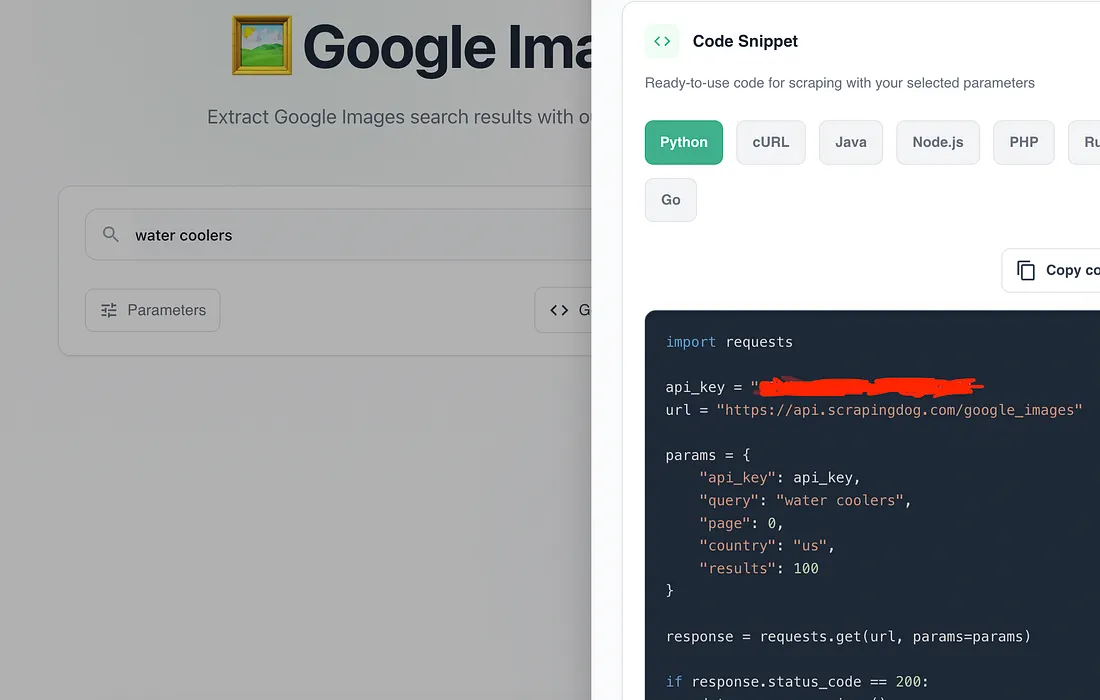
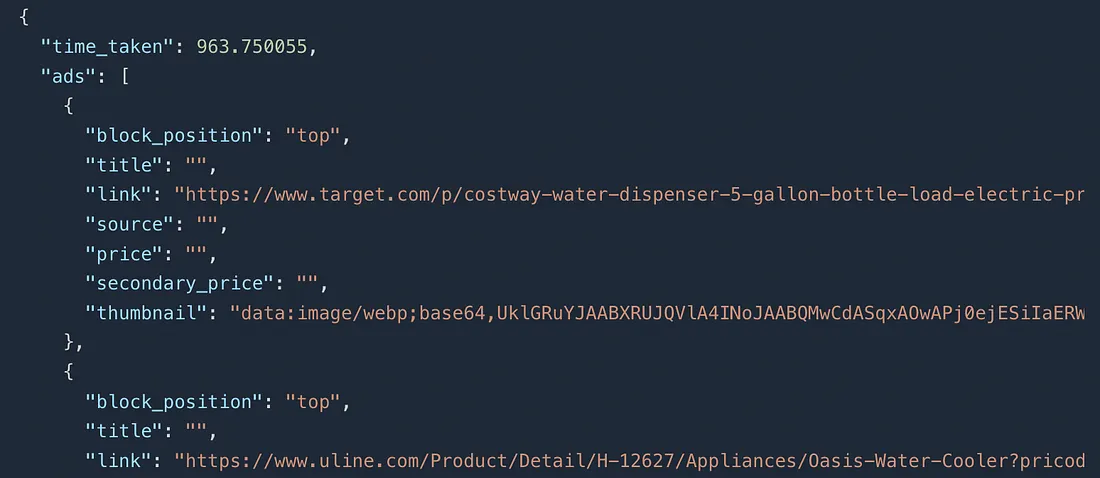
1import requests2 3api_key = "your-api-key"4url = "https://api.scrapingdog.com/google_images"5 6params = {7 "api_key": api_key,8 "query": "water coolers",9 "page": 0,10 "country": "us",11 "results": 1012}13 14response = requests.get(url, params=params)15 16if response.status_code == 200:17 data = response.json()18 print(data)19else:20 print(f"Request failed with status code: {response.status_code}")When you run this code, you’ll get a clean, structured JSON response.
Saving data to CSV
1import requests2import pandas as pd3 4api_key = "your-api-key"5url = "https://api.scrapingdog.com/google_images"6params = {7 "api_key": api_key,8 "query": "water coolers",9 "page": 0,10 "country": "us",11 "results": 10012}13 14response = requests.get(url, params=params)15 16if response.status_code == 200:17 data = response.json()18 19 image_results = data.get("images_results", [])20 21 if image_results:22 df = pd.DataFrame(image_results)23 24 # Keep only useful columns25 cols = ["rank", "title", "source", "link", "image", "original",26 "original_width", "original_height", "original_size",27 "is_product", "is_licensable", "is_video"]28 29 # Only keep columns that exist in the response30 cols = 31 df = df[cols]32 33 df.to_csv("google_images_results.csv", index=False)34 print(f"Saved {len(df)} records to google_images_results.csv")35 else:36 print("No image results found in response")37else:38 print(f"Request failed with status code: {response.status_code}")To change the page number, you can change the value of the page parameter to get the data from the next page of Google Image Search.
Understanding the API Response
Once you make the API call, Scrapingdog returns a JSON object with two main arrays ads and images_results.
The ads array contains sponsored product listings that appear at the top of Google Images. Each object includes a link to the product page and a Base64-encoded thumbnail. Since the thumbnails are raw Base64 strings, they're not practical to store or use directly — the link field is the useful part here.
The images_results array is where the real data lives. Each object represents an organic image result and contains the following fields:
rank— the position of the image in the search resultstitle— the image title as shown on Googlesource— the domain the image was sourced fromlink— the URL of the page where the image appearsimage— a compressed thumbnail URL hosted on Google's CDN (encrypted-tbn0.gstatic.com)original— the full-resolution image URL from the source websiteoriginal_widthandoriginal_height— dimensions of the original image in pixelsoriginal_size— file size of the original imageis_product— whether Google has identified this as a product imageis_licensable— whether the image has a license associated with itis_video— whether the result is a video thumbnail rather than a static image
For most use cases like building ML datasets or market research, you’ll primarily work with original (the full-res image URL), title, source, and rank. The image field is useful if you only need thumbnails without hitting the source website directly.
Key Takeaways:
The guide explains how to programmatically scrape Google Images search results to collect image URLs and metadata.
It shows how to send an image search query and retrieve structured data containing image links, titles, sources, and thumbnails.
You learn how to filter and extract useful fields like image URL, page URL, image dimensions, and alt text from the response.
The tutorial outlines how to organize and save the scraped image data for use in projects, datasets, or analysis.
Scraping Google Images helps with visual search, dataset creation, trend spotting, and content discovery workflows.
Conclusion
In this article, we discussed how Google Images can be used for developing and training advanced machine-learning models based on visual intelligence. We also delve into the significance of Google Images in market research to identify current and potential future market trends. Additionally, we learned how Scrapingdog’s Google Images Scraper can serve as a strategic tool for extracting images at scale.
Feel free to message me anything you need clarification on. Follow us on Twitter. Thanks for reading!
Frequently asked questions
1. Is it legal to scrape Google Images?
Yes, Google Images search results are publicly accessible. However, you should always review Google's Terms of Service and ensure your scraping activities comply with applicable laws. If you're downloading or reusing images, you should also respect copyright and licensing restrictions.
2. Can I scrape Google Images using Python?
Yes. Python libraries like Playwright can automate Google Images and extract titles, image URLs, thumbnails, and source pages. For production workloads, many developers use a Google Images API that returns structured JSON instead of parsing HTML.
3. Why is Google Images difficult to scrape?
Google Images relies on JavaScript rendering, lazy loading, Base64 thumbnails, browser fingerprinting, CAPTCHA protection, and IP rate limiting. These mechanisms make simple HTTP requests unreliable for large-scale scraping.
4. What data can I extract from Google Images?
You can collect image titles, thumbnail URLs, original image URLs, source websites, page links, image dimensions, rankings, licensing information, and whether a result is a product or video.
5. What are the most common use cases for scraping Google Images?
Developers scrape Google Images to build machine learning datasets, perform market research, monitor visual trends, analyze competitors, discover content, and power computer vision applications.
6. Why do manual Google Images scrapers fail at scale?
Manual scrapers often break because Google frequently changes its HTML structure, detects browser automation, blocks IP addresses, serves CAPTCHAs, and requires significant infrastructure to handle large scraping workloads reliably.
Additional Resources
I have prepared a complete list of blogs on Google scraping, which can help you in your data extraction journey: