
- Scrapingdog (eBay Search API)
- n8n
- Google Sheets (To Maintain Your Database)
Let’s start with your Spreadsheet, this is where you will have your keywords and their rankings.
Here’s how our spreadsheet will look: –
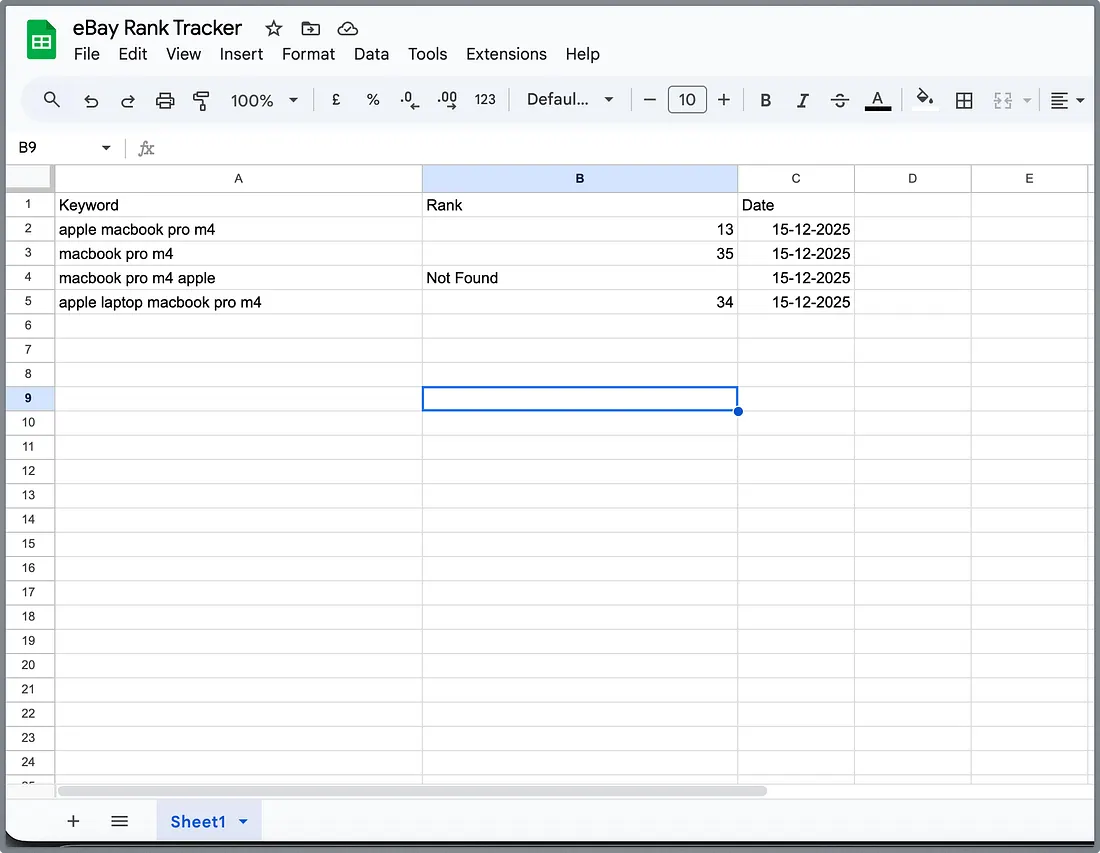
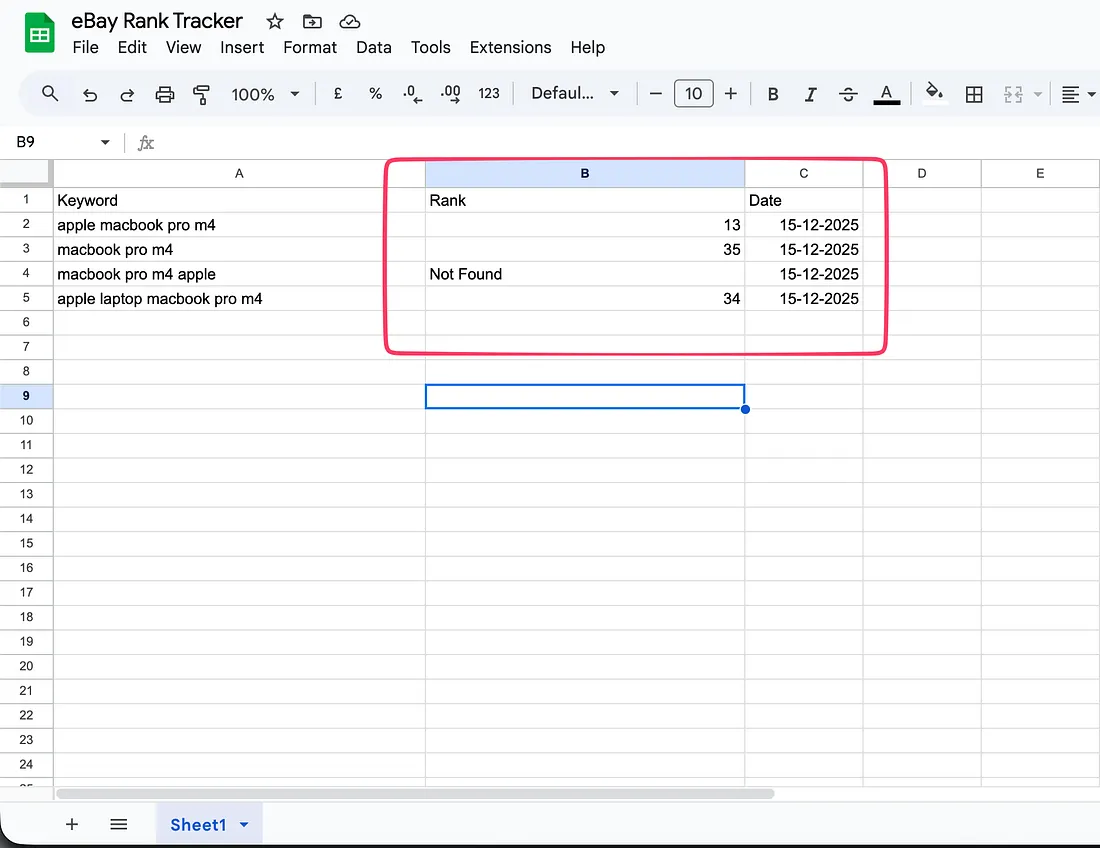
Wherein we will just put in our keywords in this tab & the Rank & Date column will be updated by our workflow.
Now, let’s start building this workflow in n8n. Head back to your n8n account.
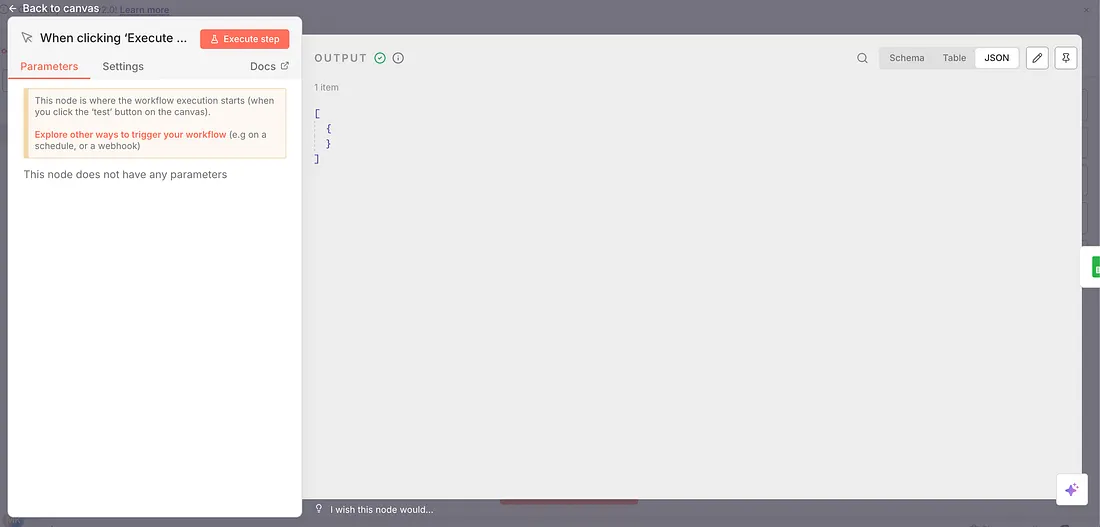
As you know, each workflow starts with a trigger; there are a couple of methods to use a trigger; for us, we are keeping it manual.
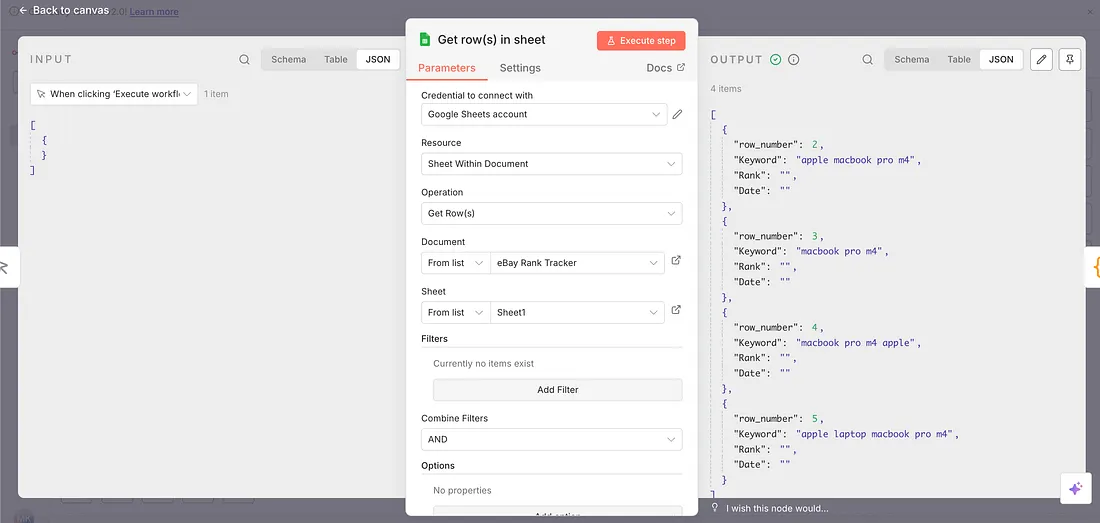
Now the next node will be to take data from our spreadsheet, therefore the Google Sheets node will be used & we will take keywords from there.
Since each time we want the rank for every keyword mentioned in our sheet, we will take the rank for each of them out.
This is how the configuration of this node will look.
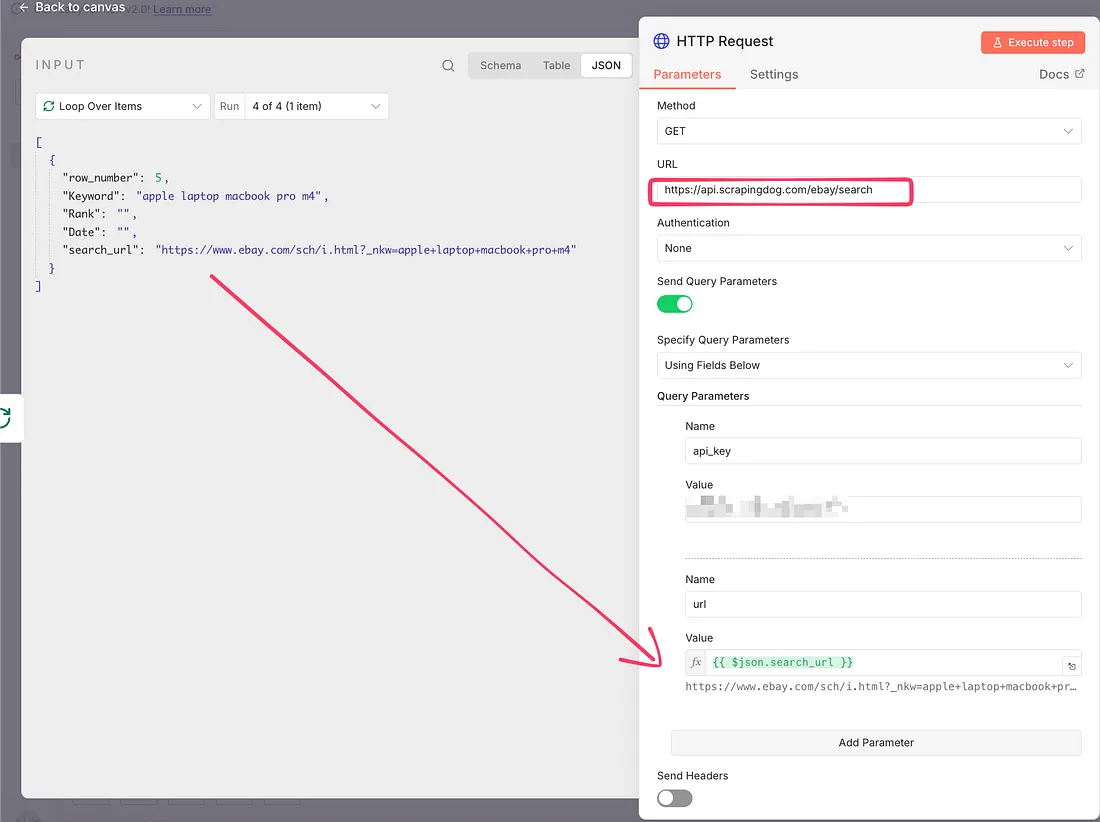
Let’s pause here for a moment and get back to eBay Search API documentation. Here you can see that, as one of the input parameters, the endpoints need the URL of eBay. So every time you search for a product (or use a keyword) the URL of eBay gets changed.
This pattern remains the same, and therefore, instead of using the URL of eBay, we are building one using our keywords, and for that, we are using the code node.
This code node uses JavaScript code and converts the keywords given into a URL.
The JS code that I am using is: —
And here is the configuration of that node: –
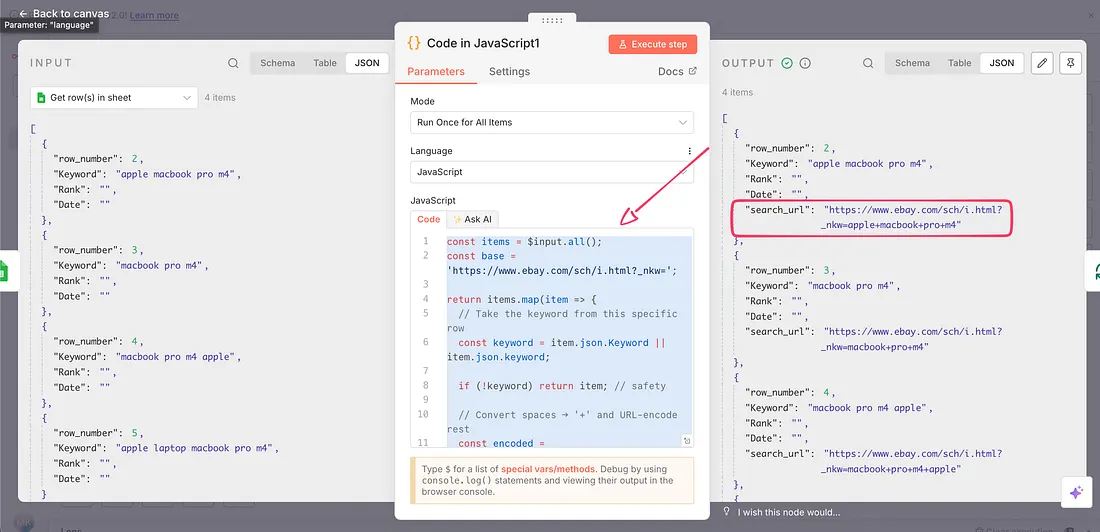
For each keyword, we have a new data point search_url that is generated with this code.
Now we will use this URL in our HTTP node, which we will use to call the eBay search API.
Since there is more than one keyword we want to track, the workflow should have a loop node to build a cycle of tracking.
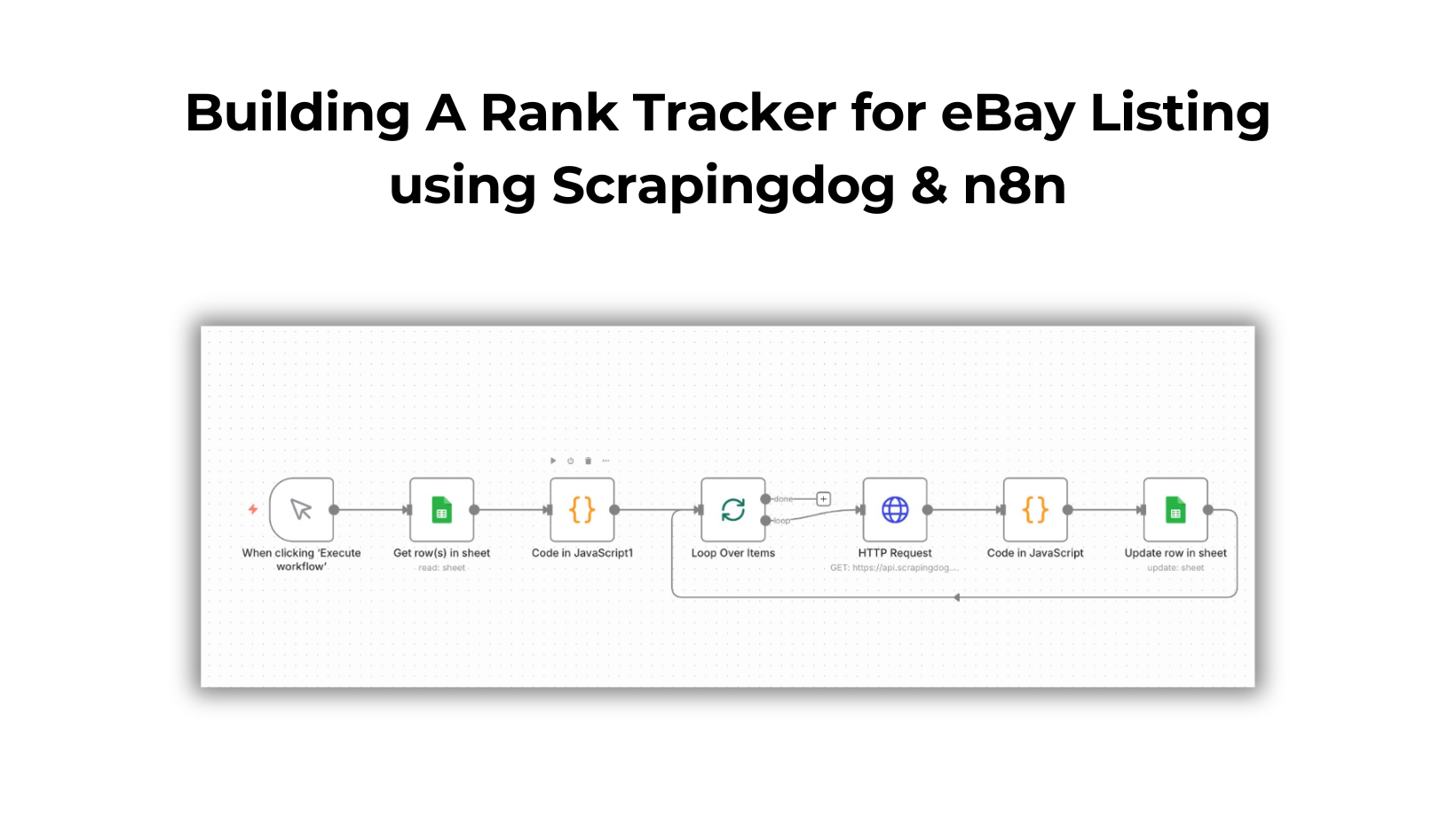
Therefore, the next node is a loop node in our workflow, and after that, we have an HTTP node as discussed earlier to scrape search results from eBay.
In the next node, we will again use a code node, which will help us to take out the rankings. The field we are using to differentiate our listing from other listings is the ‘seller’s name’.
When you download the blueprint, you will need to change the seller’s name to track your keywords.
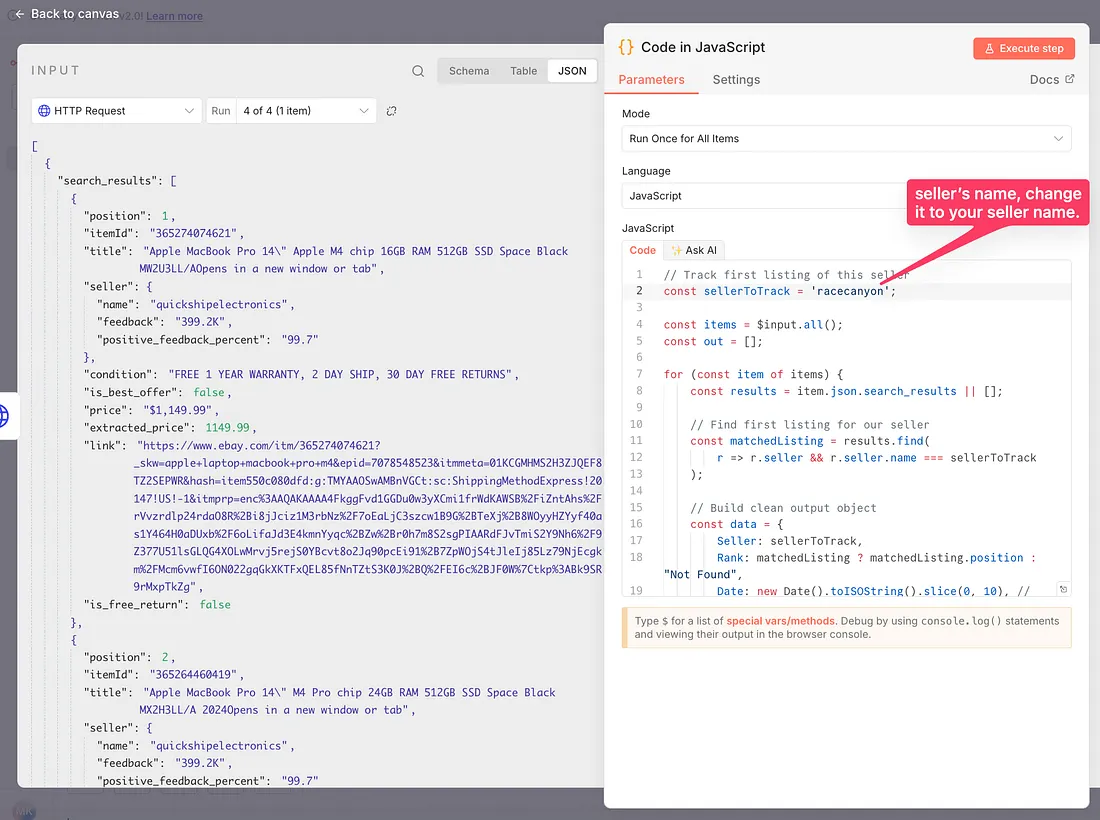
If your listing won’t be found, the data you get in the output is ‘Not Found’. Let me show you how the output looks from this node.
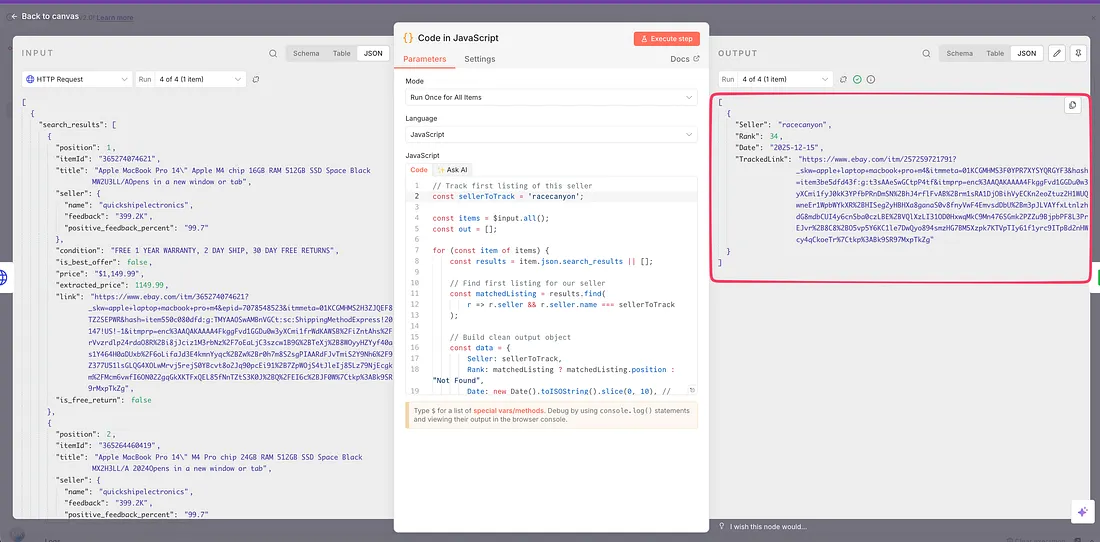
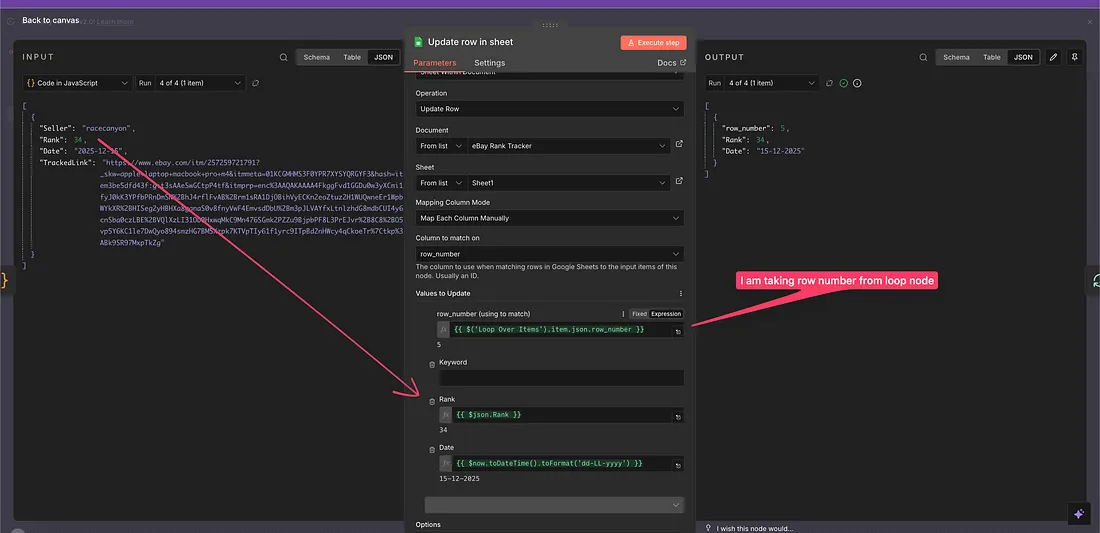
Now the final task would be to take this data back to the spreadsheet to make a note.
For that, I will add a Google Sheets node & add the relevant data back to it with the fresh date so that I have the updated data every time.
Here is the configuration of that node: –
And when the whole automation runs, I have the rank data in my spreadsheet like this.
Finally, the output of the Spreadsheet node connects to the Loop node, so that we can track different keywords’ rank one by one.
And here is the blueprint for this automation that you can use as is in your workflow if you have an n8n account (either free, self-hosted, or paid).