TL;DR
- Python is ideal for web scraping because it is simple to learn and has strong library support for every stage of the workflow.
Requests+BeautifulSoup+Pandasis the easiest beginner stack for fetching HTML, extracting data, and saving it to CSV.lxml+XPathgives more precise control when you need advanced element targeting in HTML or XML.- Scrapy is the better choice for large-scale crawling because it is faster, structured, and built for production scraping.
- Selenium and Playwright are best for JavaScript-heavy websites that need a real browser to fully load content.
- Once you scrape at scale, proxies, CAPTCHAs, and JS rendering become the main challenge that’s where Scrapingdog helps automate the hard part.
Web scraping with Python is one of the most in-demand skills in data science, competitive intelligence, and automation — and Python makes it more accessible than any other language.
In this tutorial, we’ll cover 8 Python libraries for web scraping, from the simplest to the most powerful. By the end, you’ll have built a real working scraper that extracts product data from Amazon and saves it to a CSV file.
Here’s what we’ll cover:
- Requests — making HTTP requests to any website
- BeautifulSoup — parsing and extracting data from HTML
- XPath & lxml — querying HTML/XML like a pro
- Pandas — storing scraped data in CSV/JSON
- Scrapy — building production-grade crawlers
- Selenium — scraping JavaScript-heavy websites
- Playwright — the modern alternative to Selenium
- Regular Expressions — pattern matching for data cleaning
- urllib3 & MechanicalSoup — lightweight alternatives worth knowing
Whether you’re a complete beginner or an experienced developer looking to sharpen your scraping skills, this guide has you covered. Each section includes working code examples you can run immediately.
Estimated read time: ~25 minutes
Let’s get started.
Why learn web scraping with Python?
Learning web scraping with Python is a skill highly sought after in numerous fields today, such as data science, digital marketing, competitive analysis, and machine learning.
Python, with its simplicity and extensive library support (such as BeautifulSoup, Scrapy, and Selenium), makes web scraping easily approachable even for beginners.
This powerful skill allows you to extract, manipulate, and analyze data from the web, turning unstructured data into structured data ready for insights and decision-making.
By knowing how to automate these processes with Python, you can save considerable time and resources, opening up new opportunities for extracting value from the vast data landscape of the internet.
Which Python Library Should You Use for Web Scraping?
Before we dive into each library in detail, here’s a quick overview of all 8 libraries we’ll cover, so you can jump directly to the one that fits your use case.
Python Libraries
| NAME | DIFFICULTY | USAGE | APPLICATION |
|---|---|---|---|
| SOCKET | 4 | 1 | WEB BROWSING |
| REQUESTS | 1 | 5 | HTTP CALLS |
| LXML | 2 | 5 | PARSING DATA USING XPATH |
| SCRAPY | 3.5 | 3 | CRAWLING AND EXTRACTING DATA |
| URLLIB3 | 1.5 | 1 | WHEN YOU NEED SSL VERIFICATION AT THE HOST LEVEL |
| REGEX | 4.5 | 5 | FOR FASTER DATA PARSING AND REPLACEMENT. |
| MSOUP | 2 | 2 | IF YOU HAVE TO DEAL WITH FOLLOW REDIRECTS |
| BS4 | 2 | 5 | PULLING DATA OUT OF HTML OR XML |
How to Make HTTP Requests for Web Scraping in Python
In this section, we will explore the Python requests library and use it to scrape a website. But first, let’s understand why we need it and how it works.
The requests library is one of the most popular Python libraries, widely used by developers across all skill levels. It allows us to send HTTP requests to any website or web service. When you make a request, it opens a connection to the target server and asks for permission to access its content — this is the fundamental mechanism that enables applications to communicate with each other over the internet.
Now, let’s see it in action with a simple web scraping example, using Amazon as our target.
					mkdir scraper
pip install requests
Then create a file scraper.py in this folder and start coding with me.
					import requests
# This will import the requests library inside our file. Now, we can use it to create a web scraper.

target_url = "https://www.amazon.com/dp/B08WVVBWCN"
headers = {"User-Agent": "Mozilla/5.0 (Windows NT 10.0; Win64; x64) AppleWebKit/537.36 (KHTML, like Gecko) Chrome/105.0.0.0 Safari/537.36"}

resp = requests.get(target_url, headers=headers)
print(resp.status_code)
Here we have declared a target_url variable that stores our target URL from amazon.com. Then we declared headers, and finally we made a GET request to our target URL. This is what happens when we run this code.
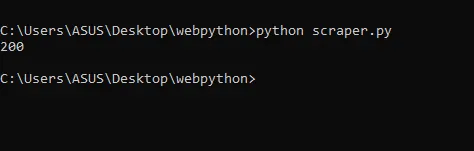
When we print the status code, we get 200, which means our request was successful and we were able to connect to Amazon without any issues.
You can also view the raw HTML content returned by Amazon by simply replacing status_code with text in the print statement.
print(resp.text)
It will look something like this.
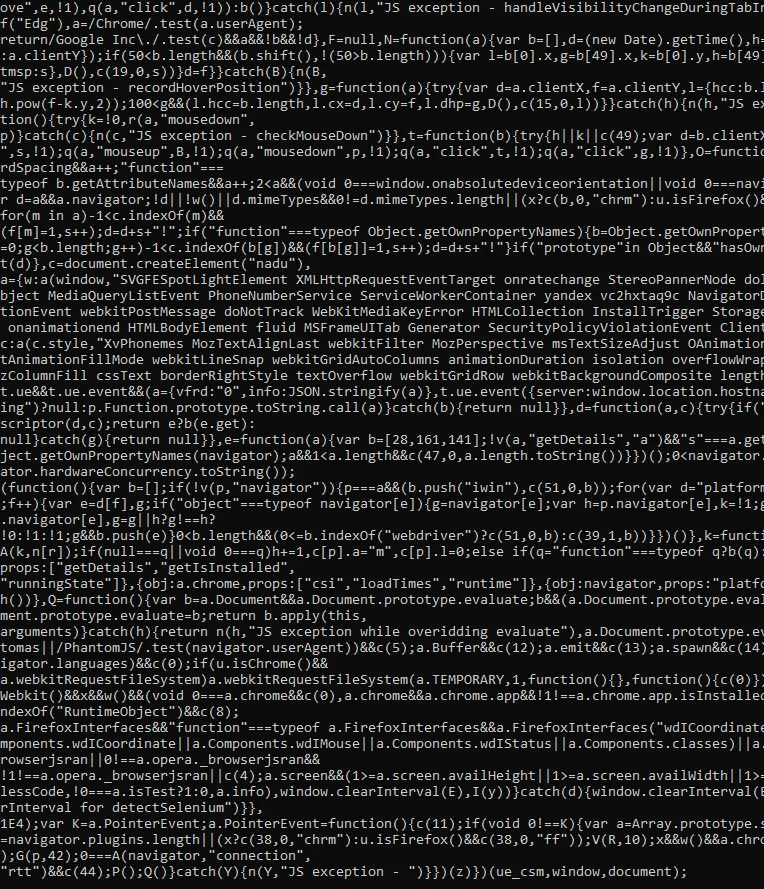
As you can see, the raw HTML returned is not very readable. To extract meaningful data from it, we need to parse it, and that’s where BeautifulSoup comes in.
But before we dive into that, you may have noticed that we passed a headers argument in our request above. Let’s take a moment to understand what headers are and why they play an important role in web scraping.
HTTP Headers
In this section, I am going to cover the concept of headers with some examples. So, let’s jump on it.
You might already know when you make API calls, you transfer a piece of information within that envelope. Let’s say one person is a client and another person is a server and an envelope is getting transferred in the form of API and that is the mode of communication.
The contents inside that envelope are actually the data that is getting transferred from one person to another but you might also know that when such communications happen in real life on the top of the envelope there is also the address to whom this data has to go. But along with that address, there is another address that is used when the letter is not received by the receiver.
This is just an analogy but what I am trying to explain to you is that header also plays a similar kind of role.
Headers are a sort of indication for the metadata of what the response or requests consist of inside. Now, to understand this let me categorize headers for you. So, mainly they can be categorized into four different categories.
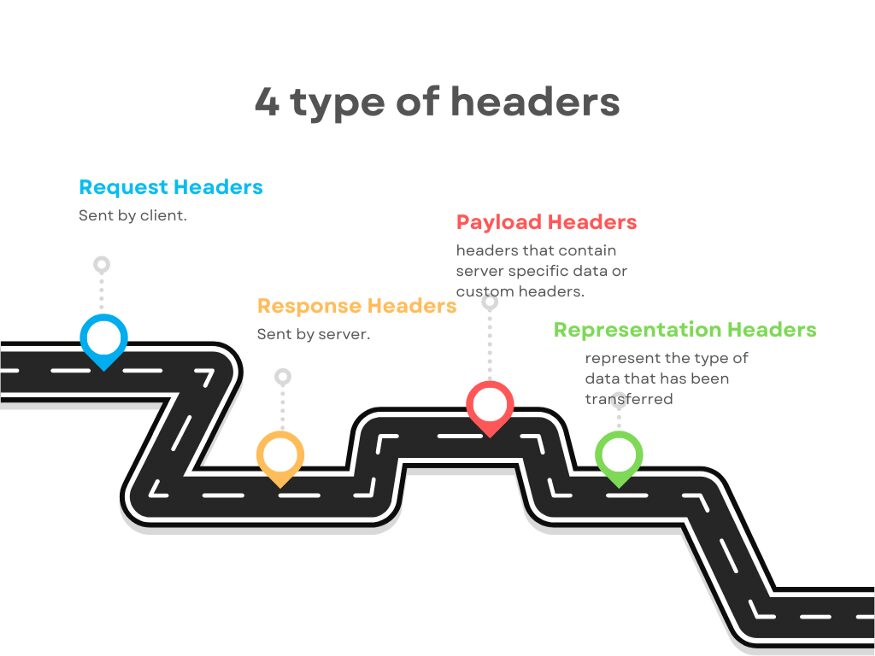
- Request Headers
- Response Headers
- Payload Headers
- Representation Headers
It does not mean that a request header cannot be a response header or vice-versa. Let’s understand what each of these headers actually means.
Request Headers
It is a key value pair just like other headers and they are sent by the client who is requesting the data. It is sent so that the server can understand how it has to send the response. It also helps the server to identify the request sender.
Examples of Request headers are
- Host: www.medium.com
- User-Agent: Mozilla/5.0 (Windows NT 10.0; Win64; x64) AppleWebKit/537.36 (KHTML, like Gecko) Chrome/74.0.3729.169 Safari/537.36
- Referer: https://medium.com
- Connection: close
- Accept-Language: en-us
- Accept-Encoding; gzip
Do remember Content-Type header is not a request header, it is a representation header. We will learn more about this but I just wanted to remove this confusion from your mind as the earliest.
From the list of sample headers shown above, the Host and User-Agent are holding the information that who is sending the request.
Accept-Language tells the server that this is the language in which I can understand your response and similarly Accept-Encoding tells the server that even if you have compressed data I can understand it.
Read More: What Are User-Agents in Web Scraping & How to Use Them Effectively
Response Headers
They are just like request headers but the transmission is in reverse. Actually, these headers are sent by the server to the client. It explains to the client what to do with the response. It provides additional information about the data it has sent.
Example of Response headers:
- Connection: keep-alive
- Date: Mon, 08 Nov 2022
- Server: nginx
- Content-Type: text/html
- Transfer-Encoding: chunked
- Etag: W/”0815”
Etag is the response header that is used for versioning and cache. The Date is telling the client the date at which the response was sent from server to client. But again Content-Type or Content-Encoding are representation headers which we are going to cover in a bit.
Representation Headers
Representation headers represent the type of data that has been transferred. The data that has been sent from the server to the client can be in any format like JSON, HTML, XML, chunked (if the data size is huge), etc. The server also tells the client about the range of the content.
Examples of Representation headers:
- Content-Type: text/html
- Content-Encoding: gzip
- Content-Length: 3523
- Content-Range: bytes 50–1000/*
- Content-Location: /docs/fo.xml
Content-Location tells the client about an alternate location where the requested resource or data can be retrieved. Typically, a URL points to where that particular resource is stored.
Beyond the standard headers covered above, there are many others you may encounter, such as Trailer, Transfer-Encoding, ETag, If-None-Match, Authorization, and more.
Now, what if you’re building your own API and need to define custom headers? Absolutely, you can. Just like you define the request and response structure of your API, you can also specify custom headers that your client or server will recognize and accept.
A common example is the Authorization header. It can hold any value you define, and the server can then use that value to identify the client, enforce access control, or drive any other logic it needs.
Now that you understand how headers work and why we pass them with every request, let’s take the raw HTML we received from Amazon and actually extract useful data from it, and that’s where BeautifulSoup comes in.
How to Parse HTML with BeautifulSoup in Python
It is also known as BS4. So, it is basically used for pulling data out of any HTML or XML files. It is used for searching and modifying any HTML or XML data.
Now lets us understand how we can use it. We will use HTML data from our last section. But before anything, we have to import it into our file.
from bs4 import BeautifulSoup
From our target page, we will extract a few important data like name, price, and product rating. For extracting data we will need a parse tree.
soup=BeautifulSoup(resp.text, ’html.parser’)
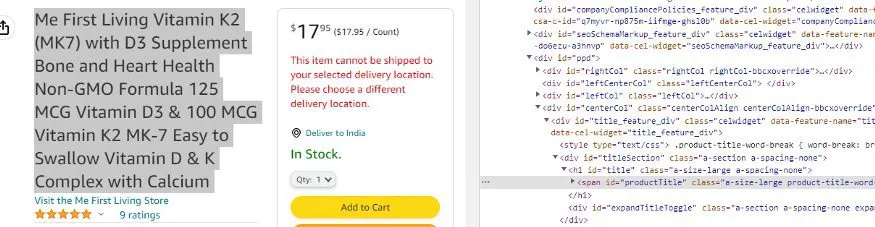
When you inspect the name you will see that it is stored inside a class a-size-large product-title-word-break.
					name = soup.find("span",{"class":"a-size-large product-title-word-break"}).text
print(name)
When we print the name, we get this.

As you can see we got the name of the product. Now, we will extract the price.
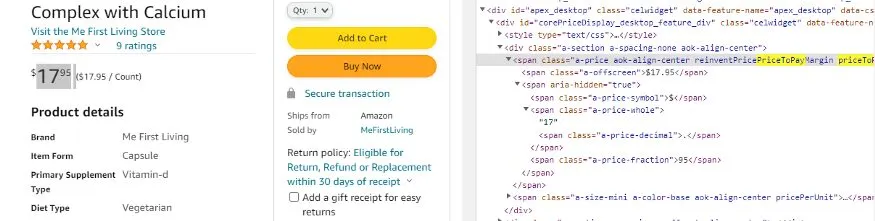
By inspecting the price I can see that the price is stored inside a-offscreen class and this class is stored inside priceToPay class.
					price = soup.find("span",{"class":"priceToPay"}).find("span",{"class":"a-offscreen"}).text
print(price)
When we print it we get this.

Now, the last part is to extract the rating of the product.

As you can see the rating is stored inside a class a-icon-star.
rating = soup.find(“i”,{“class”:”a-icon-star”}).text
So, when we print this we get this.
>>> 4.9 out of 5 stars
But if you just need the 4.9 part and you want to remove all of the extra text then we will use the split function of Python.
rating = soup.find(“i”,{“class”:”a-icon-star”}).text.split(“ “)[0]
This will provide us with just the rating part.
>>> 4.9
We were able to parse out all the necessary data from the junk HTML we got in the first section by making a GET request through the requests library.
Now, what if you have to store this data in a CSV file? We will require the Pandas library for this task.
Read More: BeautifulSoup to extract data from HTML
XPath
XPath, which stands for XML Path Language, is a query language used for selecting nodes from an XML document. If you’re not familiar with XML, don’t worry — this section will bring you up to speed.
XML stands for Extensible Markup Language. It is similar to HTML in that both use tags to structure data, but there is a key difference. HTML has a predefined set of tags, like <body>, <head>, and <p> each carrying a specific meaning that browsers understand. XML, on the other hand, has no such predefined tags. You can name your tags anything you like, and they carry no built-in meaning.
The design goal of XML is to emphasize simplicity, generality, and usability across the Internet. Because of this flexibility, XML is widely used today for transferring data between web services.
Now, back to XPath. Since it is a query language designed for XML documents, its primary purpose is to select specific nodes. To understand what a node is, it helps to think of any XML or HTML document as a tree structure.
Consider an XML document representing a movie database. At the top level, you have a <MovieDatabase> tag containing multiple <Movie> tags. Each <Movie> tag in turn contains child tags like <Title>, <Year>, <DirectedBy>, and <Cast>, and within <Cast> you might have <Actor> tags with <FirstName> and <LastName> children.
This nesting of tags creates a hierarchy that can be visualized as a tree, where each tag is a node. XPath allows you to traverse this tree and select nodes that match a specific pattern or condition. The same concept applies to HTML documents, which is why libraries like BeautifulSoup can parse them in a similar fashion.
With that foundation in place, let’s look at some XPath syntax examples to see how node selection works in practice.
Example
Since our main goal is to learn how to use XPath for web scraping, we won’t go deep into the full XPath syntax, just enough to get you started.
Consider a simple XML document with a <bookstore> tag at the root, containing multiple <book> tags, each with a <title> and a <price> tag. You can follow along using the XPath tester linked at the end of this section.
Selecting the root element
To search from the root of the tree, we start with / followed by the element name:
/bookstore
This returns the entire bookstore node along with everything nested inside it.
Selecting all books
To get all <book> elements inside the bookstore:
/bookstore/book
This returns every book available in the bookstore.
Filtering by attribute
Now, suppose you only want the book whose id is 2. You can filter by attribute using square brackets and the @ symbol:
/bookstore/book[@id="2"]
The @ symbol refers to an attribute of the tag. This expression tells XPath to find all <book> tags where the id attribute equals 2, returning only that specific book.
Selecting a child element
To go one step further and retrieve just the price of that book:
/bookstore/book[@id="2"]/price
This returns only the <price> value for the book with id="2".
That covers the basics of XPath. If you’d like to explore the full syntax, W3Schools has excellent documentation. For now, this is everything you need to start building a web scraper with XPath.
LXML
It is a third-party library for working with XML. We have learned enough about XML in the previous section.
LXML provides full XPath support and nice factory functions that make it a better choice. The goal of LXML is to work with XML using the element tree API stored in lxml etree.
LXML can read from files or string objects of XML and parse them into etree elements.
Now, let’s understand how we can use lxml while web scraping. First, create a folder and install this library.
					mkdir scraper
pip install lxml
Once that is done, create a scraper.py file inside your folder scraper and start coding with me.
					from lxml import html
import requests
We have imported the requests library to request because we have to get the HTML data of that web page as well.
url=”https://en.wikipedia.org/wiki/Outline_of_the_Marvel_Cinematic_Universe”
and then we will send an HTTP request to our URL.
url=”https://en.wikipedia.org/wiki/Outline_of_the_Marvel_Cinematic_Universe”
Now, if you will run it you will get 200 code which means we have successfully scraped our target URL.

Now, let’s create a parse tree for our HTML document.
tree = html.fromstring(resp.content)
html.fromstring is a function that takes your HTML content and creates a tree out of it and it will return you the root of that tree. Now, if you print the tree you will get this <Element html at 0x1e18439ff10>.
So, it says we have got HTML elements at some position, and as you know HTML tag is the root of any HTML document.
Now, I want to search certain elements using Xpath. We have already discovered the Xpath earlier in this article. Xpath of our target element is //*[@id=”mw-content-text”]/div[1]/table[2]/tbody/tr[3]/th/i/a
elements = tree.xpath(‘//*[@id=”mw-content-text”]/div[1]/table[2]/tbody/tr[3]/th/i/a’)
We have passed our Xpath inside the tree function. Do remember to use single or triple quotes while pasting your Xpath because python will give you an error for double quotes because our Xpath already has them.
Let’s print and run it and see what happens.
[Element a at 0x1eaed41c220]
On running the code, we got our target element, which was matched with this particular XPath.
you will get this <Element a at 0x1eaed41c220>. As you can see, it is an anchor tag. We have two options to get the data out of this tag.
.text will return the text that contains. Like elements[0].text will return Iron Man.attribwill return a dictionary {‘href’: ‘/wiki/Iron_Man_(2008_film)’, ‘title’: ‘Iron Man (2008 film)’}. This will provide you with the href tag which is actually the link and that is what we need. We also get the title of the movie.
But since we only need the href tag value, we will do this
elements[0].attrib[‘href’]
This will return the target link.
This is what we wanted.
Pandas
Pandas is a Python library that provides flexible data structures and makes our interaction with data very easy. We will use it to save our data in a CSV file.
					obj={}
arr=[]
obj["name"] = soup.find("span",{"class":"a-size-large product-title-word-break"}).text.lstrip()
obj["price"] = soup.find("span",{"class":"priceToPay"}).find("span",{"class":"a-offscreen"}).text
obj["rating"] = soup.find("i",{"class":"a-icon-star"}).text.split(" ")[0]
arr.append(obj)
First, we declared an object and an array. Then we stored all our target data inside this object. Then we pushed this object inside an array. Now, we will create a data frame using pandas with this array, and then using that data frame we will create our CSV file.
					df = pd.DataFrame(arr)
df.to_csv('amazon_data.csv', index=False, encoding='utf-8')
This will create a CSV file by the name amazon_data.csv inside your folder.
Pandas made our job a lot easier. Using this technique you can scrape amazon pages at any scale.
Complete code
					import requests
from bs4 import BeautifulSoup
import pandas as pd

url = "https://www.amazon.com/dp/B08WVVBWCN"
headers = {
    "User-Agent": "Mozilla/5.0 (Windows NT 10.0; Win64; x64) AppleWebKit/537.36 (KHTML, like Gecko) Chrome/105.0.0.0 Safari/537.36"
}

resp = requests.get(url, headers=headers)
print(resp.status_code)

soup = BeautifulSoup(resp.text, 'html.parser')

obj = {}

name_tag = soup.find("span", {"class": "a-size-large product-title-word-break"})
price_tag = soup.find("span", {"class": "priceToPay"})
rating_tag = soup.find("i", {"class": "a-icon-star"})

obj["name"] = name_tag.text.strip() if name_tag else "N/A"
obj["price"] = price_tag.find("span", {"class": "a-offscreen"}).text if price_tag else "N/A"
obj["rating"] = rating_tag.text.split(" ")[0] if rating_tag else "N/A"

arr = [obj]

df = pd.DataFrame(arr)
df.to_csv('amazon_data.csv', index=False, encoding='utf-8')
print(arr)
Summary
As you saw, requests, BeautifulSoup, and pandas together make it straightforward to extract and store data from Amazon. However, if you’re looking to scrape Amazon at scale, like millions of pages, you’ll need to handle several additional challenges on your own, such as rotating proxies, managing headers, and solving CAPTCHAs.
That’s where Scrapingdog’s Web Scraping API comes in. Scrapingdog handles all of that complexity for you, leveraging a large pool of proxies and smart header management to scrape Amazon reliably without any extra configuration on your end.
And it’s not limited to Amazon either; Scrapingdog can scrape any website, including those that require JavaScript rendering. If you’d like to give it a try, new users get 1,000 free API credits to get started.
If you want to learn to scrape other websites like Google, yelp, etc using requests and BS4 then read the following articles:
How to Build a Web Crawler with Scrapy
It is a powerful Python framework that is used to extract data from any website in a very flexible manner. It uses Xpath to search and extract data. It is lightweight and very easy for beginners to understand.
Now, to understand how Scrapy works we are going to scrape Amazon with this framework. We are going to scrape the book section of Amazon, more specifically we are going to scrape books that were released in the last 30 days.
I have also written a guide on Web scraping Amazon with Python do check that out.
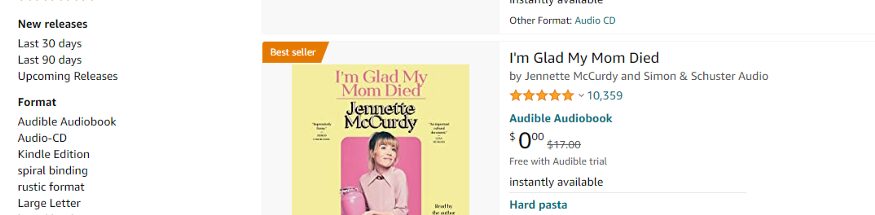
We will start with creating a folder and installing Scrapy.
					mkdir scraper
pip install scrapy
Now, before we start coding we have to create a project. Just type the below command in your terminal.
scrapy startproject amazonscraper
This command will create a project folder inside scraper folder by the name amazonscraper.
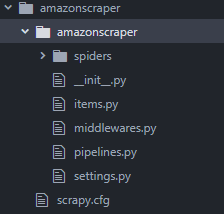
The above command also returns some messages on the terminal where it is telling you how you can start writing your own scraper. We will use both of these commands.
Let’s go inside this amazonscraper folder first.
					cd amazonscraper
scrapy genspider amazon_spider amazon.com
This will create a general spider for us so that we don’t have to create our own spider by going inside the spider folder, this will automatically create it for us. Then we name the spider and then we type the domain of our target website.
When you press enter you will have a file by the name amazon_spider.py inside your folder. When you open that file you will find that a parse function and an Amazonspider class have been automatically created.
					import scrapy

class AmazonSpiderSpider(scrapy.Spider):
 name = ‘amazon_spider’
 allowed_domains = [‘amazon.com’]
 start_urls = [‘http://amazon.com/']

def parse(self, response):
 pass
We will remove the allowed_domains variable as we do not need that and along with that, we will declare start_urls to our target URL.
					//amazon_spider.py

import scrapy

class AmazonSpiderSpider(scrapy.Spider):
 name = ‘amazon_spider’
 allowed_domains = [‘amazon.com’]
 start_urls = [‘https://www.amazon.com/s?k=books&i=stripbooks-intl-ship&__mk_es_US=%C3%85M%C3%85%C5%BD%C3%95%C3%91&crid=11NL2VKJ00J&sprefix=bo%2Cstripbooks-intl-ship%2C443&ref=nb_sb_noss_2']

def parse(self, response):
 pass
Before we begin with our scraper we need to create some items in our items.py file which are temporary containers. We will scrape the title, price, author, and image link from the Amazon page.
Since we need four items from Amazon we will add four variables for storing the values.
					import scrapy

class AmazonScraperItem(scrapy.Item):
    product_name = scrapy.Field()
    product_author = scrapy.Field()
    product_price = scrapy.Field()
    product_image_link = scrapy.Field()
Now, we will import this file into our amazon_spider.py file.
					//amazon_spider.py

from ..items import AmazonscraperItem
Just type it at the top of the file. Now, inside our parse method, we are going to declare a variable which will be the instance of AmazonscraperItem class.
					def parse(self, response):
 items = AmazonscraperItem()
 pass
We are now ready to scrape our target elements from Amazon. We will start with scraping the product name.
We will declare a variable product_name which will be equal to a CSS selector for the product name element.
					def parse(self, response):
    items = AmazonScraperItem()
    product_name = response.css('span.a-size-medium.a-color-base.a-text-normal::text').get()
    pass
Here I am going to use the SelectorGadget extension to get the element location on the target page.
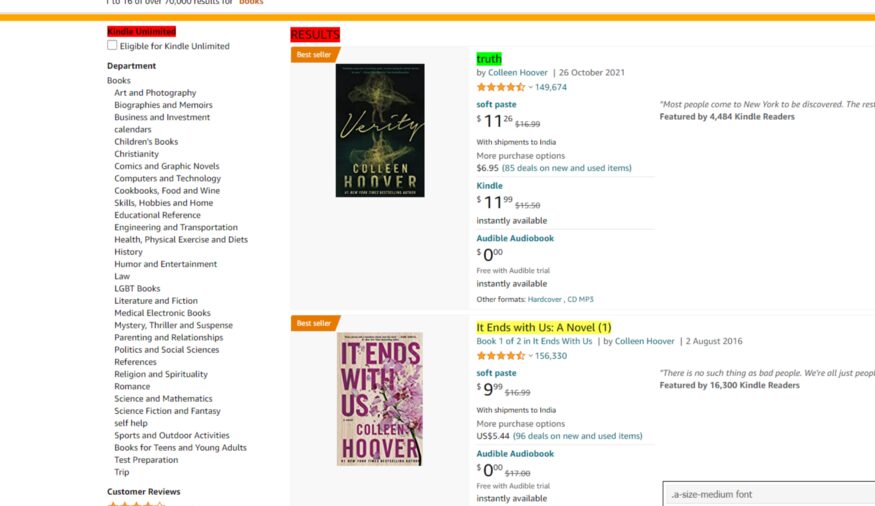
At the bottom right you can see our CSS selector. I am just going to copy it from here and I will paste it into our code.
					def parse(self, response):
    items = AmazonScraperItem()
    product_name = response.css('.a-size-medium::text').getall()
    pass
I have used the .extract() function to get the HTML part of all those product elements. Similarly, we are going to use the same technique to extract product price, author, and image link.
While finding CSS selectors for the author SelectorGadget will select some of them and will leave many authors unselected. So, you have to select those authors as well.
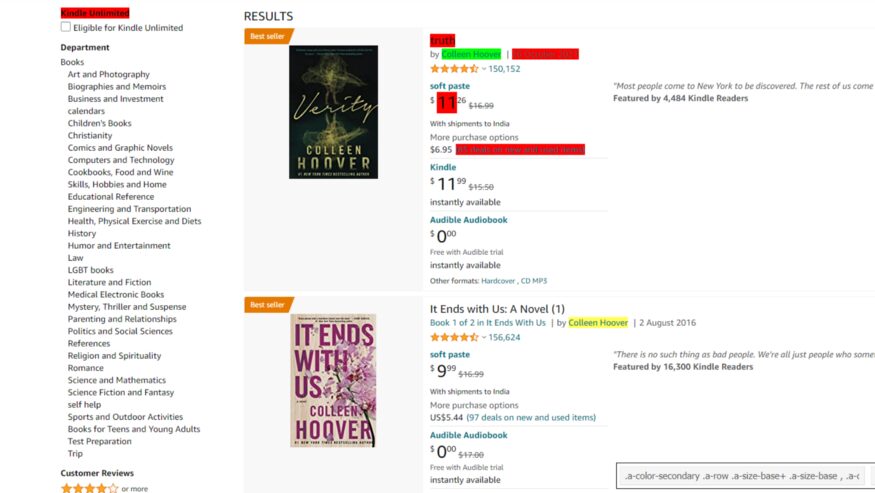
					def parse(self, response):
    items = AmazonScraperItem()
    product_name = response.css('.a-size-medium::text').getall()
    product_author = response.css('.a-color-secondary .a-row .a-size-base+ .a-size-base, .a-color-secondary .a-size-base.s-link-style, .a-color-secondary .a-size-base.s-link-style font::text').getall()
    pass
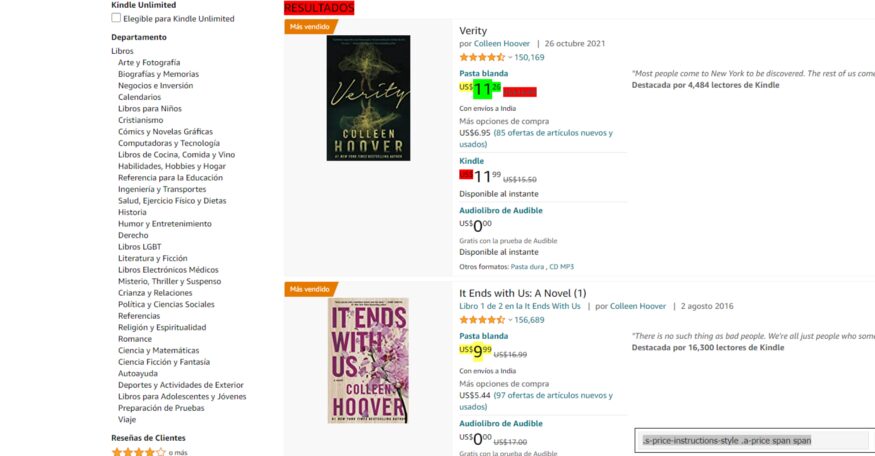
Now, let’s find the CSS selector for the price as well.
					def parse(self, response):
    items = AmazonScraperItem()
    product_name = response.css('.a-size-medium::text').getall()
    product_author = response.css('.a-color-secondary .a-row .a-size-base+ .a-size-base, .a-color-secondary .a-size-base.s-link-style, .a-color-secondary .a-size-base.s-link-style font::text').getall()
    product_price = response.css('.s-price-instructions-style .a-price-fraction::text, .s-price-instructions-style .a-price-whole::text').getall()
    pass
Finally, now we will find the CSS selector for the image.
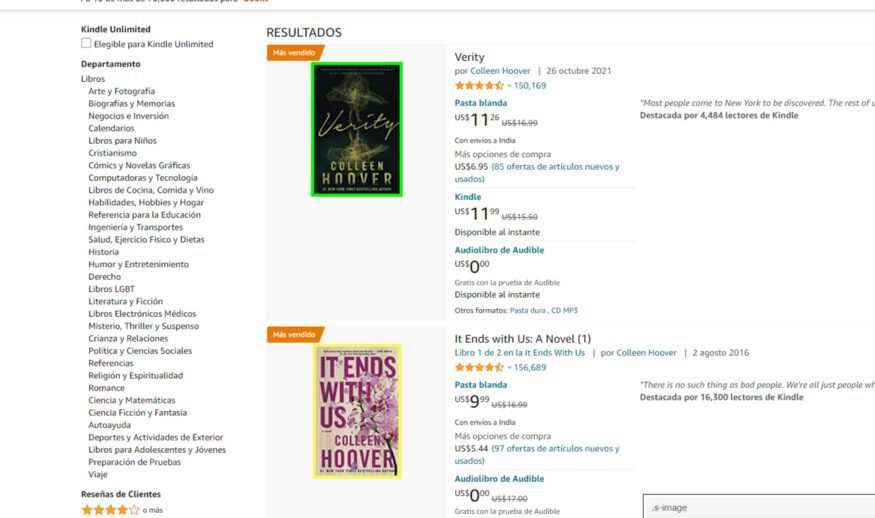
.s-image is the CSS selector for our images.
					def parse(self, response):
    items = AmazonScraperItem()
    product_name = response.css('.a-size-medium::text').getall()
    product_author = response.css('.a-color-secondary .a-row .a-size-base+ .a-size-base, .a-color-secondary .a-size-base.s-link-style, .a-color-secondary .a-size-base.s-link-style font::text').getall()
    product_price = response.css('.s-price-instructions-style .a-price-fraction::text, .s-price-instructions-style .a-price-whole::text').getall()
    product_image_link = response.css('.s-image::attr(src)').getall()
Now, as I said earlier this will only provide us with the HTML code and we need to extract the name from it. So, for that, we will use the text feature of Scrapy.
This will make sure that the whole tag does not get extracted and that only the text from this tag gets extracted.
product_name= response.css(‘.a-size-medium::text’).extract()
But because we are using multiple classes for the CSS selector that is why we can’t add this text at the end.
We have to use .css() function for product_price and product_author.
					product_author = response.css('.a-color-secondary .a-row .a-size-base+ .a-size-base , .a-color-secondary .a-size-base.s-link-style , .a-color-secondary .a-size-base.s-link-style font').css('::text').extract()
product_price = response.css('.s-price-instructions-style .a-price-fraction , .s-price-instructions-style .a-price-whole').css('::text').extract()
product_imagelink is just selecting the image so we will not use .css() function on it. Our image is stored inside the src tag and we need its value. 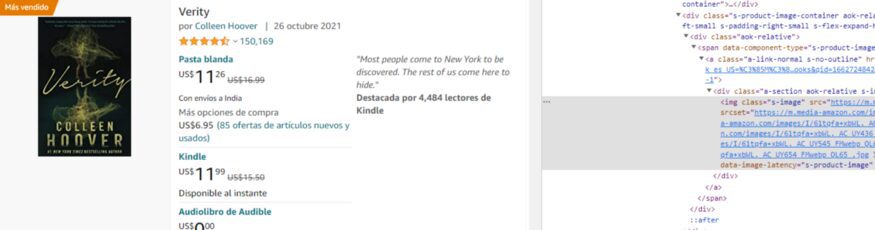
We will use the attr feature of Scrapy.
product_imagelink = response.css(‘.s-image::attr(src)’).extract()
We have managed to extract all the values. Now, we will store them in their individual temporary item containers, and this is how we do it.
items[‘product_name’] = product_name
This product_name is actually the variable that we have declared in our items.py file. We are going to do this with all our other target elements.
					items[‘product_name’] = product_name
 items[‘product_author’] = product_author
 items[‘product_price’] = product_price
 items[‘product_imagelink’] = product_imagelink
Now, we just need to yield the items and this will complete our code. Our code might not at first but let’s see what we have got.
yield items
Now, to run our code run the below command on your terminal.
scrapy crawl amazon_spider
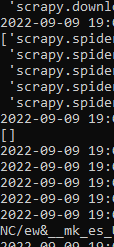
As you can see we got an empty array. This is due to the anti-bot mechanism of amazon. To overcome this we are going to set a User-Agent in our settings.py file.
USER_AGENT = ‘Mozilla/5.0 (Windows NT 6.1; Win64; x64; rv:47.0) Gecko/20100101 Firefox/47.0’
Now, let’s try again.
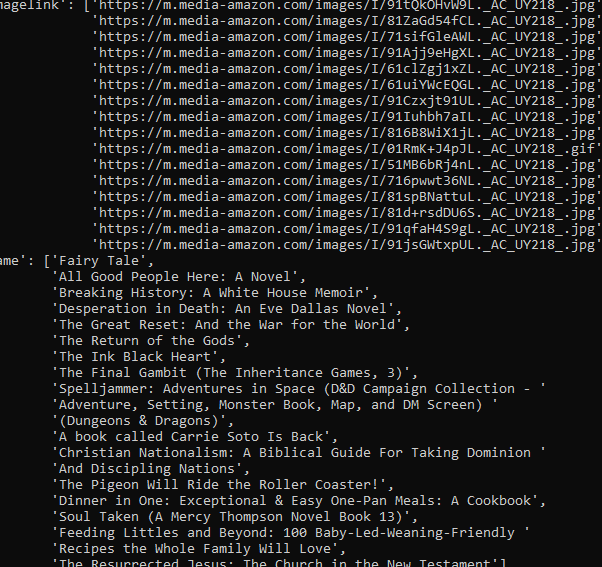
Hurray!! we got the results. But as usual, this will not work for long as Amazon’s anti-bot technique will kick in and your scraper will stop.
For scraping any number of pages you are advised to use a Web Scraping API.
Complete code
					import scrapy
from ..items import AmazonScraperItem

class AmazonSpider(scrapy.Spider):
    name = 'amazon_spider'
    allowed_domains = ['amazon.com']
    start_urls = [
        'https://www.amazon.com/s?k=books&i=stripbooks-intl-ship&rh=n:283155,p_n_publication_date:1250226011&dc&language=es&ds=v1:0r+6Zb7Q60+15gaAfSXGzhcbIdyc5r/TuKQVY1NC/ew&__mk_es_US=ÅMÅŽÕÑ&crid=11NL2VKJ00J&qid=1662730061&rnid=1250225011&sprefix=bo,stripbooks-intl-ship,443&ref=sr_nr_p_n_publication_date_1'
    ]

    def parse(self, response):
        items = AmazonScraperItem()
        product_name = response.css('.a-size-medium::text').getall()
        product_author = response.css('.a-color-secondary .a-row .a-size-base+ .a-size-base, .a-color-secondary .a-size-base.s-link-style, .a-color-secondary .a-size-base.s-link-style font::text').getall()
        product_price = response.css('.s-price-instructions-style .a-price-fraction::text, .s-price-instructions-style .a-price-whole::text').getall()
        product_image_link = response.css('.s-image::attr(src)').getall()

        items['product_name'] = product_name
        items['product_author'] = product_author
        items['product_price'] = product_price
        items['product_image_link'] = product_image_link

        yield items
and this is our items.py file
					import scrapy
class AmazonScraperItem(scrapy.Item):
    product_name = scrapy.Field()
    product_author = scrapy.Field()
    product_price = scrapy.Field()
    product_image_link = scrapy.Field()
The functionalities of Scrapy do not stop here!!
- You can set a parallel request number in your
settings.pyfile by changing the value ofCONCURRENT_REQUESTS. This will help you to check how much load an API can handle. - It is faster than most of the HTTP libraries provided by Python.
How to Scrape Dynamic Websites with Selenium
Selenium is a framework to test websites and other web applications. It supports multiple programming languages and on top of that, you get support from multiple browsers not just Chrome. It provides APIs to make connections with your driver.
Let’s understand this framework with a simple web scraping task. We are going to scrape a dynamic website with selenium. Our target website will be Walmart. The first step is to install selenium. Type the below command on your terminal to install Selenium.
Also, I have a dedicated article made on scraping walmart product details using Python. Do check that out too! (But, let us focus on this article first)
pip install selenium
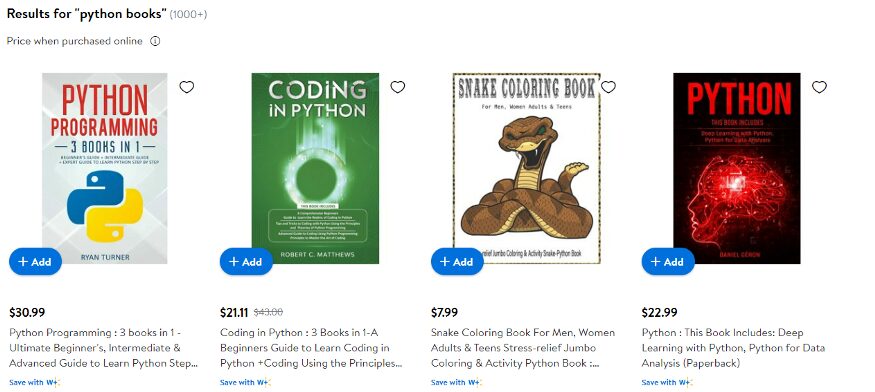
Our job would be to open this website and extract the HTML code and print it.
So, the first step is to import all the libraries in our file.
					from selenium import webdriver
from selenium.webdriver.chrome.options import Options
Then we are going to set the options which selenium provides. We will set the page size and we will run it in a headless format.
The reason behind running it in a headless form is to avoid extra usage of GUI resources. Even while using selenium in production on external servers, you are advised to use it with headless mode to avoid wasting CPU resources and reduce throttling risks. This will ultimately increase your cost because you will need to add more servers for load balancing.
					options = Options()
options.headless = True
options.add_argument(“ — window-size=1920,1200”)
Now, we will declare our driver and you have to use the path where your chromium driver is installed.
					PATH_TO_DRIVER='YOUR_PATH_TO_CHROIUM_DRIVER'

driver = webdriver.Chrome(options=options, executable_path=PATH_TO_DRIVER)

url="https://www.walmart.com/search/?query=python%20books"
We have also declared our target URL. Now, we just need to use it’s .get() method to open the driver.
					driver.get(url)

time.sleep(4)
print(driver.page_source)
I used the sleep method to load the website completely before printing the HTML. I just want to make sure that the website is loaded completely before printing.
While printing we have used page_source property of selenium. This will provide us with the source of the current page. This is what we get when we print the results.
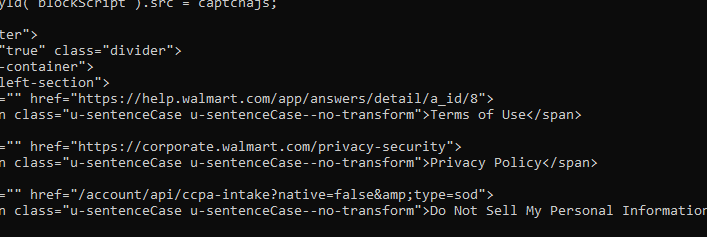
We get the required HTML part. Now, Walmart also has an anti-bot detection method just like amazon but Walmart needs JS rendering also for scraping.
To scrape websites like Walmart you can always use Scrapingdog’s Web Scraping Tool to avoid managing JS rendering and proxy rotation.
I have created a separate blog on web scraping with Selenium here. Do check it out!!
The reason behind using JS rendering for certain websites is:
- To load all the javascript hooks, once all of them are loaded we can easily scrape it at once by just extracting the source after loading it completely on our browser.
- Some websites need lots of AJAX calls to load completely. So, in place of a normal GET HTTP call, we render JS for scraping. To verify whether a website needs a JS rendering or not you can always look at the network tab of that website.
It also provides certain properties which might help you in the future.
- driver.title — This can be used for extracting the title of the page.
- driver.orientation — This will provide the physical orientation of the device with respect to gravity.
Advantages of using Selenium
- The best advantage I found is you can use it with any programming language.
- You can find bugs at an earlier stage of your testing or production.
- It has great community support.
- It supports multiple browsers like Chrome, Mozilla, etc.
- Very handy when it comes to data scraping.
Disadvantages of Using Selenium
- Image comparison is absent in selenium.
- Time-consuming.
- The setup of the test environment is not that easy for beginners.
How to Scrape with Playwright and Python
Playwright is a powerful automation framework developed by Microsoft that lets you control browsers programmatically. It supports multiple browsers (Chromium, Firefox, WebKit) and works with several programming languages, including Python. One of Playwright’s strengths is built-in support for handling dynamic, JavaScript-heavy pages, making it ideal for modern web scraping.
Let’s understand Playwright with a simple scraping example. We’ll target Walmart again and extract the HTML of a search results page.
					pip install playwright
playwright install
Our job will be to open the Walmart search page, wait for the JavaScript to load, and then print the HTML.
Start by importing the library:
					from playwright.sync_api import sync_playwright
import time
Now, we’ll launch the browser in headless mode to save resources and avoid unnecessary GUI usage — this is recommended when running in production or on servers.
					with sync_playwright() as p:
    browser = p.chromium.launch(headless=True)
    page = browser.new_page()

    url = "https://www.walmart.com/search/?query=python%20books"
    page.goto(url)
    page.wait_for_load_state('networkidle')  # wait for JS and AJAX calls to complete
    print(page.content())  # prints the full rendered HTML

    browser.close()
Here’s what’s happening:
playwright.install()downloads the necessary browser binaries.- We use
chromium.launch(headless=True)to run the browser in headless mode. page.goto(url)loads our target page.time.sleep(4)ensures all JavaScript and network requests are completed.page.content()returns the fully rendered HTML.
Tip: Instead of a fixed sleep, you can use Playwright’s wait_for_selector to wait for a specific element to appear — this is more reliable for dynamic content:
page.wait_for_selector("div.search-result-gridview-items")
This ensures you’re scraping only after the target elements are loaded.
Advantages of Using Playwright
- Supports Chromium, Firefox, and WebKit out of the box.
- Great for scraping JavaScript-heavy sites.
- Easier and faster setup compared to Selenium.
- Offers powerful features like auto-waiting, request interception, and screenshot capture.
- Supports both synchronous and asynchronous APIs in Python.
Disadvantages of Using Playwright
- Slightly larger installation size because of bundled browsers.
- Not as old or battle-tested as Selenium (but catching up fast).
- Requires Node.js internally (automatically handled during installation, but still adds to the footprint).
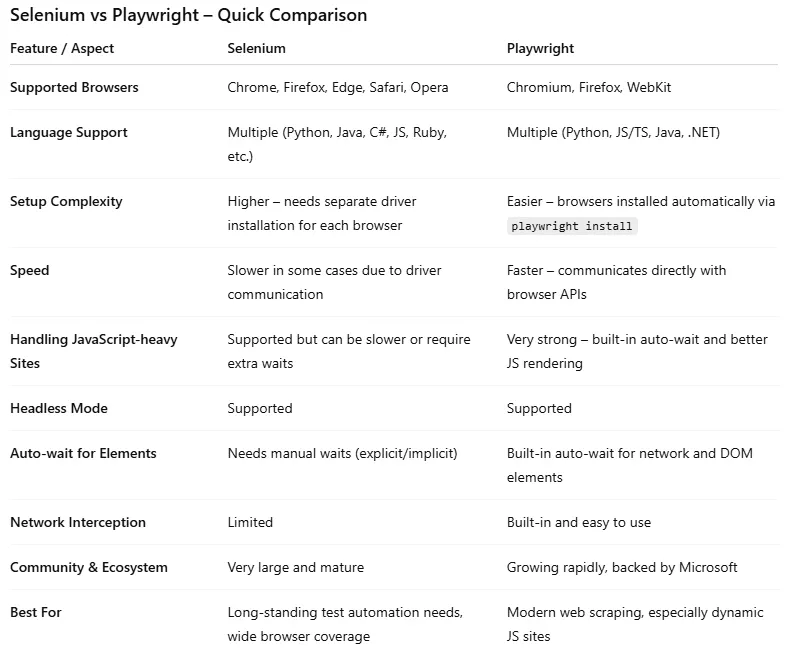
Selenium vs Playwright
Web Scraping with Regular Expression and Python
Regular expression is a powerful tool to find patterns in text. They are like using Ctrl-F on a word document but much more powerful than them.
This is very helpful when you verify any type of user input and most importantly while scraping the web. The application of Regular expression is very big.
This can be challenging at first but once you are ready, believe me, it will make your job much more efficient.
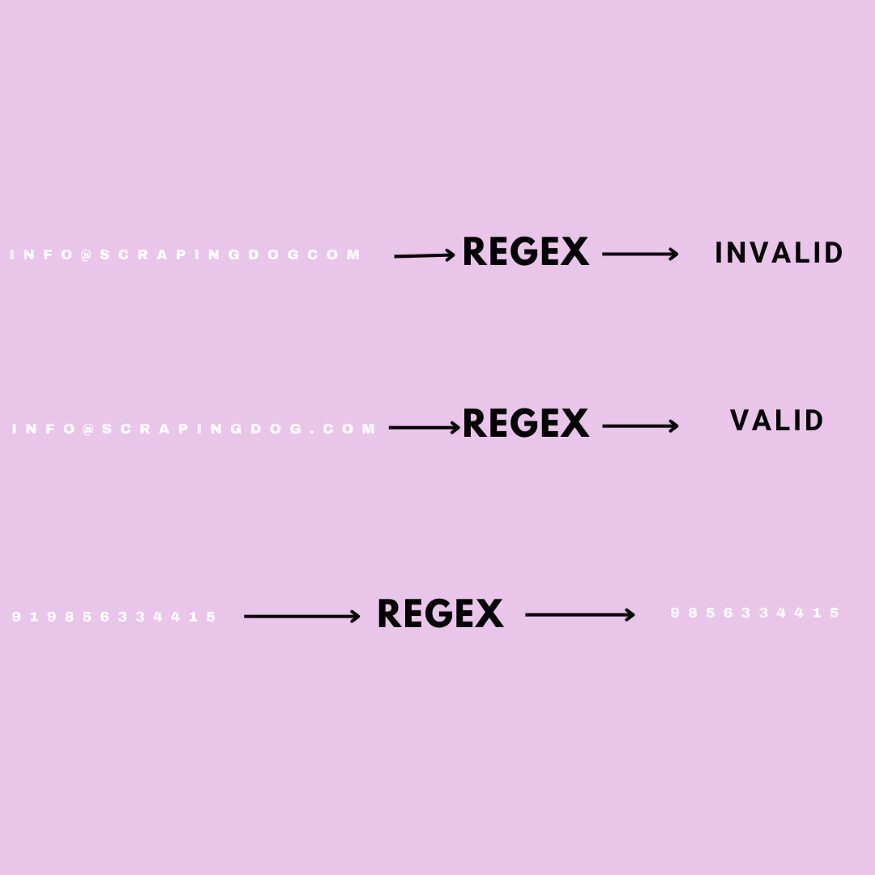
Its symbols and syntax are universal in all programming languages. To understand regular expression we are going to validate certain strings which you might face while web scraping in Python.
Let’s say you want to scrape emails from the web for the lead generation process of your company. The first part of the email can consist of:
- Uppercase letters [A-Z]
- Lower Case letters [a-z]
- numbers [0–9]
Now, if the email which is scraped does not follow this pattern then we can easily neglect that email and can move on to another email. We will write a simple code in python to identify emails like these and we are going to use re library of python.
					import re
pattern = "[a-zA-Z0–9]+@"
Brackets allow us to specify that we are looking for the characters in a given string such as email. We are going to match the pattern till @ symbol and the plus sign after the bracket means we are looking for any combination of one or more of these characters.
Since emails are provided by many domains then we have to specify that we are looking for one or more upper and lowercase letters.
pattern = “[a-zA-Z0–9]+@[a-zA-Z]”
Now, let’s check whether this can work with an if and else statement.
					email = input()

if(re.search(pattern,email)):
 print(“Valid email”)
else:
 print(“invalid email”)
Run this file on your terminal to check.

Now, let’s try [email protected].

This is how you can identify correct email strings. Now, we will learn how we can replace a character with another one using a regular expression
Replacing String
This can come in handy when you are making changes to a large database where you might have thousands of strings to update.
Now, let’s say we need every phone number entered into a continuous string of numbers with no hyphens but we want to keep the hyphens which are in word form. We will write regular expressions for that.
					import re
pattern = "(\d\d\d)-(\d\d\d)-(\d\d\d\d)"
“\d” will match any single digit. Each set of parenthesis resembles a group.
new_pattern = r"\1\2\3"
So, from left to right we have three different groups. But we need to write what we want this pattern to turn into. Let’s preserve the group but remove the hyphens.
Each backslash number represents a group so our new pattern is concatenating the three groups without the hyphen. We have put r before the string to consider it as the raw string.
Now, let’s take input from the user and check whether it works or not.
					import re

pattern = "(\d\d\d)-(\d\d\d)-(\d\d\d\d)"
new_pattern = r"\1\2\3"
phoneNumber = input()
final_output = re.sub(pattern, new_pattern, phoneNumber)
print(final_output)
This was just a basic example of how regular expression can be used in data scraping with Python. Regular expression works with any language and the rate of response is pretty fast.
You can find tons of material on regular expression online. I found this course very helpful during my Python journey. Also, if you want to test your expression then this website can help you.
Urllib3
Urllib3 is an authentic python library for making HTTP requests to any web address. Now, why it is authentic is because unlike requests it is a built-in part of python. You can use this library if you want to reduce dependencies. This package contains five modules:
- request — It is used to open URLs.
- response — This is used by the request module internally. You will not use it directly.
- error — Provides error classes to request module.
- parse– It breaks URL into schema, host, port, path, etc.
- robotparser– It is used to inspect the robots.txt file for permissions.
Now, we will understand how urllib3 can be used through simple code.
					import urllib3
http = urllib3.PoolManager()
r = http.request(‘GET’, ‘https://www.scrapingdog.com/robots.txt')
print(r.status)

print(r.data)

Steps will look similar to the requests library. PoolManager keeps a track of a number of connections.
Then we send a normal GET request to a robots.txt URL. We can even send POST and DELETE requests with urllib3.
					// POST request

import urllib3

http = urllib3.PoolManager()

r = http.request(
    'POST',
    'http://httpbin.org/post',
    fields={
        "Title": "Scrapingdog",
        "Purpose": "Web Scraping API",
        "Feature": "Fastest Web Scraper"
    }
)

print(r.status)
print(r.data.decode('utf-8'))
fields argument will send the data from the client to the server. We are sending a JSON object. The server will send a response to make the confirmation of data added to its database.

There are very high chances that as a beginner you might not use urllib3 for web scraping. Most probably you are going to use requests. But there are certain advantages of using urllib3 over requests.
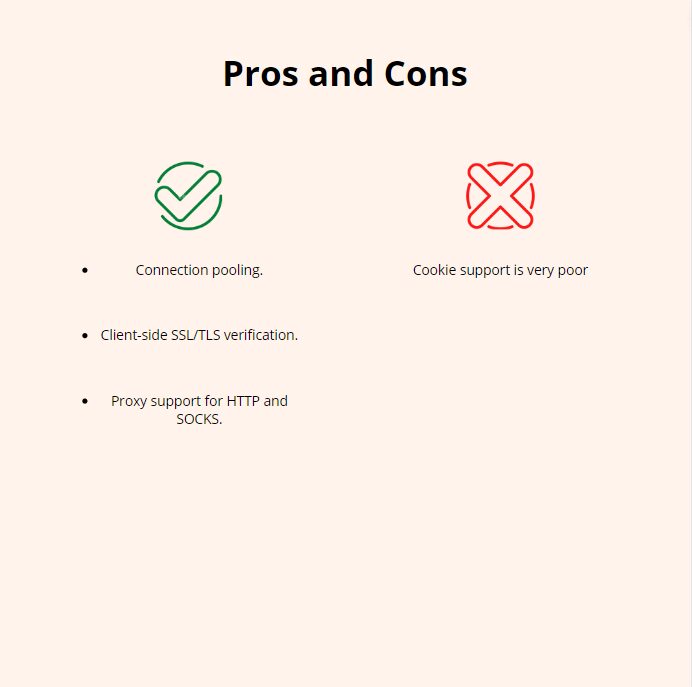
For parsing data, you can use BS4 or RegEx.
MechanicalSoup
It is like the child of BS4 because it takes the support of BS4 to mechanize everything. It allows us to do so much more with fewer lines of code. It automates website scraping and on top of that, it can follow redirects and can send and store cookies on its own.
Let’s understand MechanicalSoup a little with some Python code. You need to install it before we begin coding.
					import mechanicalsoup
browser = mechanicalsoup.StatefulBrowser()
browser object will allow us to enter commands without the need of creating new variables. Now, we are going to open the target URL.
					url="https://www.scrapingdog.com"
browser.open(url)
.open() will return an object of type requests. Response, this is due to the fact that Mechanical Soup is using the requests module to make the call.
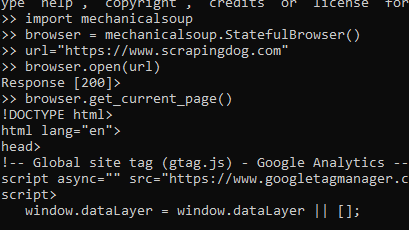
browser.get_current_page() will provide you with the HTML code of the page. It also provides many arguments like .find_all() and .select_form() to search for any element or tag in our HTML data.
Altogether it is a great library to try web scraping a little differently. If you want to learn more about this I would advise you to read this article.
How to handle CAPTCHAs?
Once you start scraping a website at scale, you will start hitting a captcha. That captcha shows that you have been blocked from accessing the website as you were rate-limited. Web scraping with Python is great, but this approach will block your scraper and your data pipeline. You must add some power to your Python script using a Web Scraping API.
Web Scraping APIs like Scrapingdog will help you bypass those limits. Scrapingdog will handle all the hassle of IP rotation to JS rendering on its own. You can start with a free trial by signing up.
Key Takeaways:
- requests is the simplest way to fetch HTML from any website. Always pair it with proper headers and a User-Agent to avoid getting blocked immediately.
- BeautifulSoup makes parsing HTML intuitive. You can use
find()for single elements andfind_all()for multiple, and chain selectors to drill into nested structures. - XPath with lxml gives you precise control over HTML/XML trees, which could be ideal when CSS selectors aren’t specific enough.
- Pandas turns your scraped data into a structured CSV or JSON in just two lines :
DataFrame()andto_csv(). - Scrapy is the go-to framework for large-scale crawling. Its spider architecture, built-in pipelines, and concurrent requests make it production-ready out of the box.
- Selenium handles JavaScript-heavy websites by running a real browser. Always use headless mode in production to save server resources.
- Playwright is the modern alternative to Selenium. It offers faster setup, auto-waiting, and better handling of dynamic content, making it the better choice for new projects.
- Regular Expressions are language-agnostic and fast. You can use them for cleaning and validating scraped data like emails and phone numbers.
- At scale, managing proxies, CAPTCHAs, and JS rendering yourself becomes a bottleneck. A Web Scraping API like Scrapingdog handles all of that so you can focus on the data.
Conclusion
We discussed eight Python libraries that can help you scrape the web. Each library has its own advantage and disadvantage. Some are easy to use but not effective and some of them could be a little difficult to understand but once you have understood them fully it will help you to get things done in no time like RegEx.
I have created a table to give you a brief idea of how all these libraries. I have rated them on the basis of difficulty, usage, and Application. I have given them numbers out of 5 so that you can understand how they can help in web scraping with Python.
If you think I have left some topics then please do let us know.
Additional Resources
- Scrapy vs Beautifulsoup: Which is better?
- Web Scraping Javascript vs Python
- Detailed Guide on Web Scraping with C sharp
- Automating web scraping with Java
- How to Use Proxy with Python Request
- Understand Web Scraping Basics with GO (Beginner Friendly Tutorial)
- Web Scraping with R (using rvest) & Saving Data in CSV
- Web Scraping with Rust (Beginner-Friendly Tutorial)
- Complete Tutorial on Web Scraping with Java
- JavaScript Web Scraping with Node.js: The Complete Guide (2026)
- Node Unblocker for Web Scraping
Frequently Asked Questions
Is Python good for web scraping?
Python is the common language used in web scraping. It is an all round language and can handle web scraping smoothly. Therefore, python is recommended for web scraping.
Is web scraping difficult?
No, basic scraping isn’t difficult. However, to scale this process you would need an API.
How do I learn web scraping?
This tutorial here used all the libraries that are used in python and have extensively explained all of them.
Learning web scraping with python is easy. Also, python is used world wide with ease and hence it is easy to learn web scraping with python.
Which is better Selenium or Beautiful Soup?
Beautiful Soup is used for smaller projects while Selenium is used for a little complex projects. Hence, both have different advantages depending where we are using both libraries.
Can I get sued for web scraping?
No, you can scrape any data that is available publicly on the web.